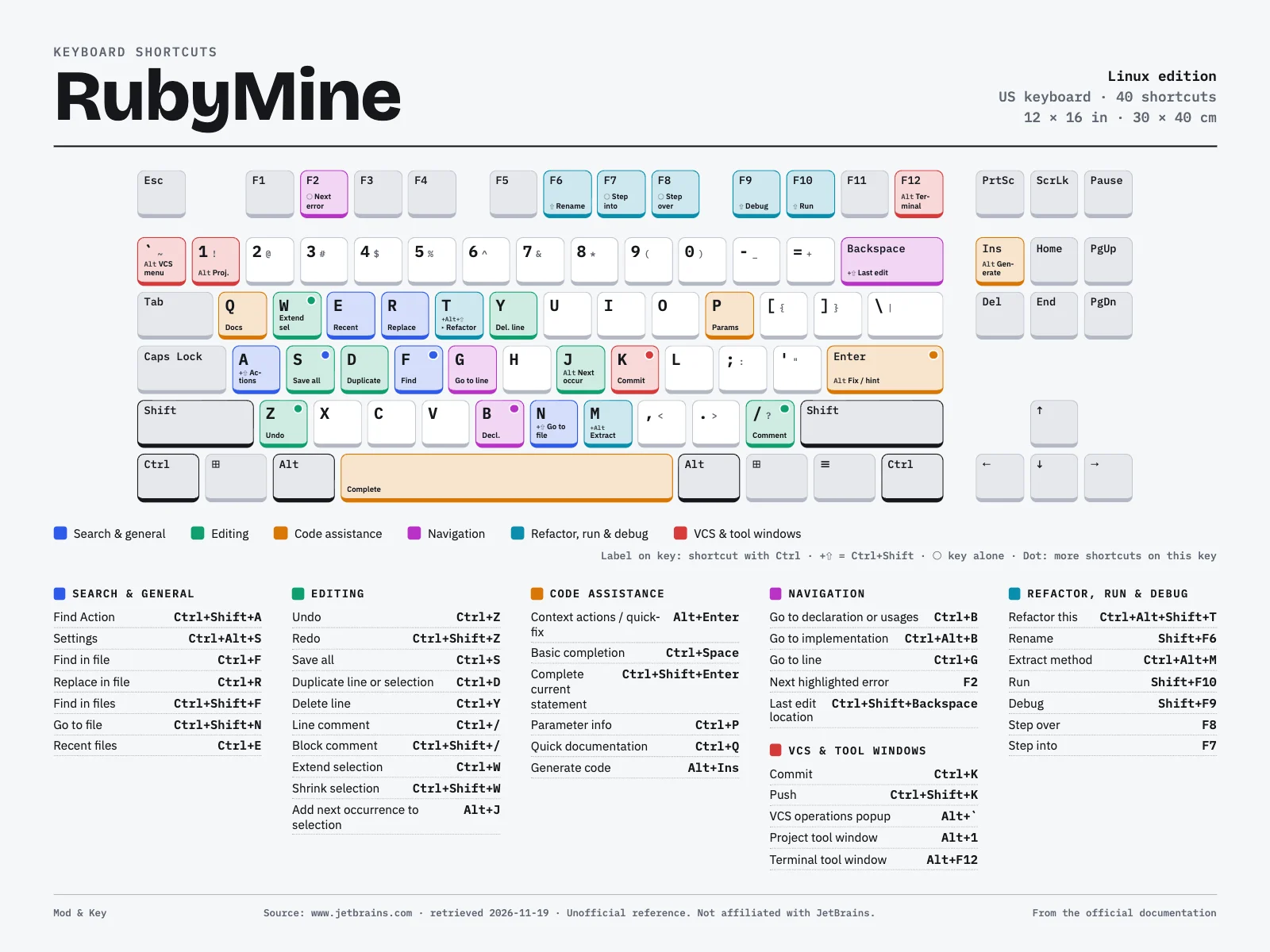
 Get it on your desk →
The most used RubyMine shortcuts on Linux: Find Action (Ctrl+Shift+A), Recent files (Ctrl+E), Line comment (Ctrl+/), Context actions / quick-fix (Alt+Enter), Go to declaration or usages (Ctrl+B). This page lists all 40, from the official documentation.
40 RubyMine keyboard shortcuts for Linux, grouped into Search & general, Editing, Code assistance, Navigation, Refactor, run & debug, VCS & tool windows. Every key is copied from www.jetbrains.com (retrieved November 19, 2026) and shown on a real keyboard layout.
On Linux, 24 of these 40 shortcuts are the Mac ones with Ctrl in place of ⌘; 16 are different, for example Settings (Ctrl+Alt+S; Mac: ⌘,), Go to file (Ctrl+Shift+N; Mac: ⇧⌘O), Delete line (Ctrl+Y; Mac: ⌘⌫).
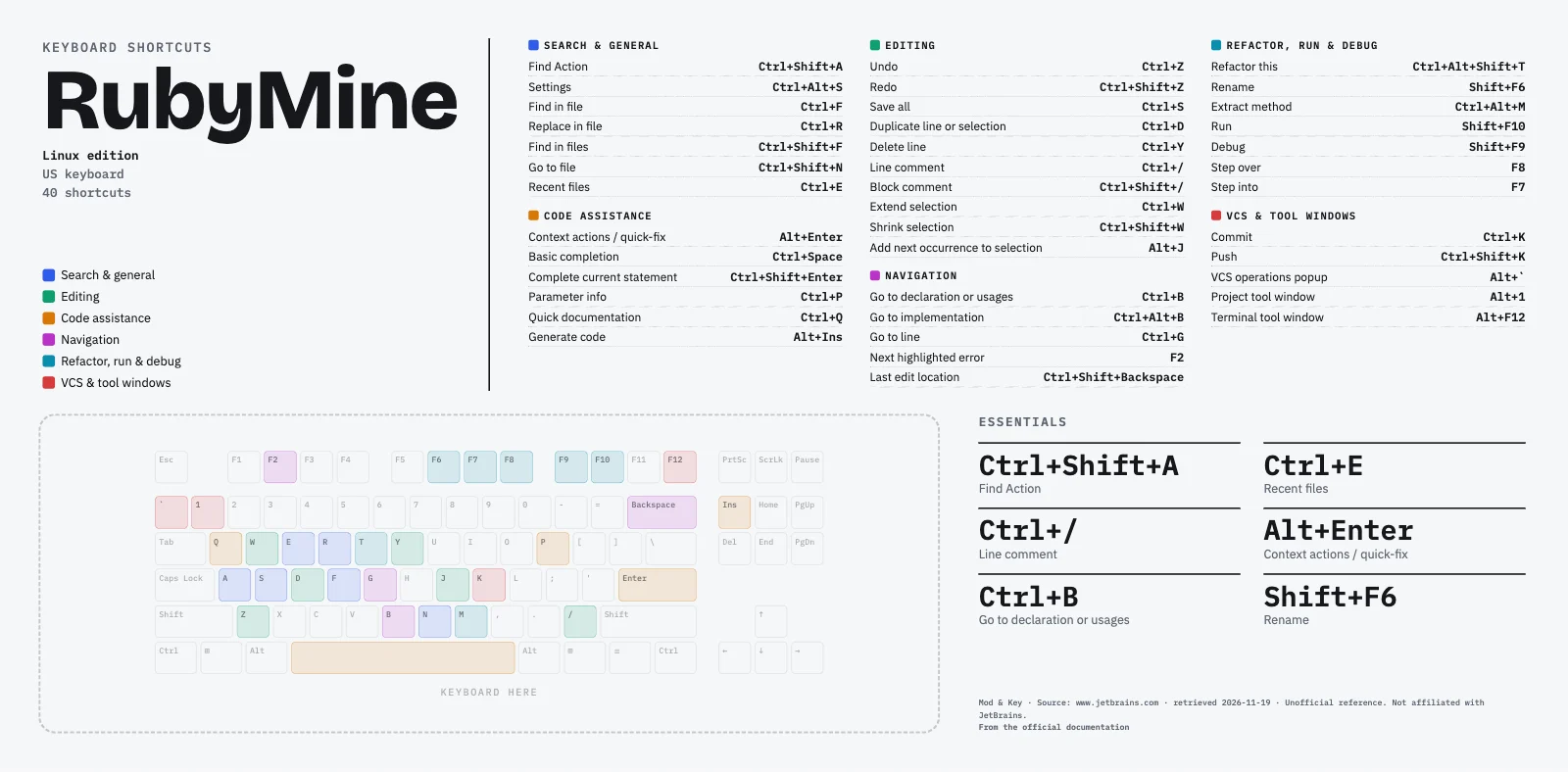
RubyMine keyboard map
Pick your keyboard and a modifier. Keys with a shortcut light up; point at or tap a key to see everything on it. Try it: hold Ctrl on your keyboard
More shortcuts on this key with other modifiers.
With Ctrl15 keys
All RubyMine keyboard shortcuts for Linux
No shortcut matches that search.
Search & general7
| Command | Shortcut |
|---|---|
| Find Action | Ctrl+Shift+A |
| Settings | Ctrl+Alt+S |
| Find in file | Ctrl+F |
| Replace in file | Ctrl+R |
| Find in files | Ctrl+Shift+F |
| Go to file | Ctrl+Shift+N |
| Recent files | Ctrl+E |
Editing10
| Command | Shortcut |
|---|---|
| Undo | Ctrl+Z |
| Redo | Ctrl+Shift+Z |
| Save all | Ctrl+S |
| Duplicate line or selection | Ctrl+D |
| Delete line | Ctrl+Y |
| Line comment | Ctrl+/ |
| Block comment | Ctrl+Shift+/ |
| Extend selection | Ctrl+W |
| Shrink selection | Ctrl+Shift+W |
| Add next occurrence to selection | Alt+J |
Code assistance6
| Command | Shortcut |
|---|---|
| Context actions / quick-fix | Alt+Enter |
| Basic completion | Ctrl+Space |
| Complete current statement | Ctrl+Shift+Enter |
| Parameter info | Ctrl+P |
| Quick documentation | Ctrl+Q |
| Generate code | Alt+Ins |
Navigation5
| Command | Shortcut |
|---|---|
| Go to declaration or usages | Ctrl+B |
| Go to implementation | Ctrl+Alt+B |
| Go to line | Ctrl+G |
| Next highlighted error | F2 |
| Last edit location | Ctrl+Shift+Backspace |
Refactor, run & debug7
| Command | Shortcut |
|---|---|
| Refactor this | Ctrl+Alt+Shift+T |
| Rename | Shift+F6 |
| Extract method | Ctrl+Alt+M |
| Run | Shift+F10 |
| Debug | Shift+F9 |
| Step over | F8 |
| Step into | F7 |
VCS & tool windows5
| Command | Shortcut |
|---|---|
| Commit | Ctrl+K |
| Push | Ctrl+Shift+K |
| VCS operations popup | Alt+` |
| Project tool window | Alt+1 |
| Terminal tool window | Alt+F12 |
Source: JetBrains · www.jetbrains.com · retrieved . Unofficial reference. Not affiliated with JetBrains. How we source shortcuts →
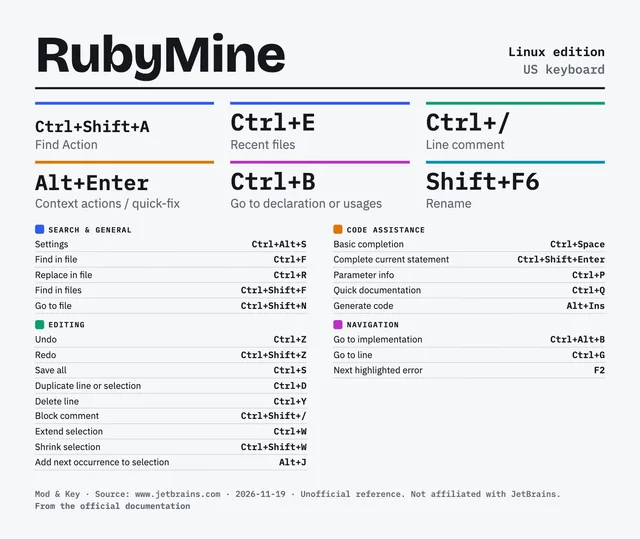
Free printable RubyMine cheat sheet
The essential shortcuts on one page (PDF, 24 × 20 cm), for your keyboard and language.
RubyMine shortcut questions
- What is the shortcut for “Find Action” in RubyMine on Linux?
- Press Ctrl+Shift+A. That is the shortcut for “Find Action” in RubyMine on Linux, as given in the official documentation.
- What is the shortcut for “Recent files” in RubyMine on Linux?
- Press Ctrl+E. That is the shortcut for “Recent files” in RubyMine on Linux, as given in the official documentation.
- What is the shortcut for “Line comment” in RubyMine on Linux?
- Press Ctrl+/. That is the shortcut for “Line comment” in RubyMine on Linux, as given in the official documentation.
- Where do these RubyMine shortcuts come from?
- From JetBrains’s official documentation at www.jetbrains.com, retrieved November 19, 2026. Every key is copied from there, never from other websites.