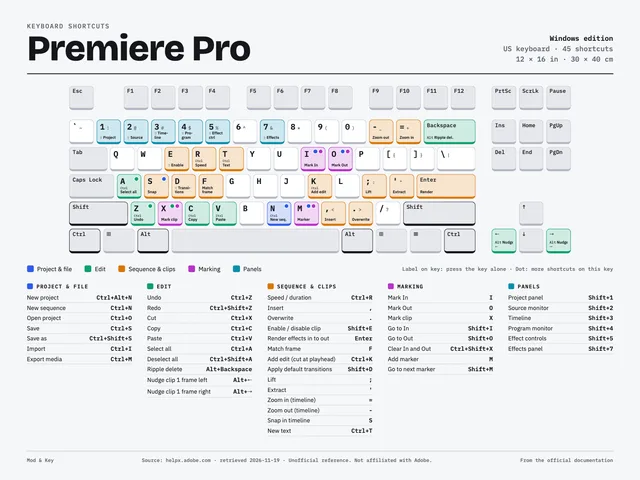
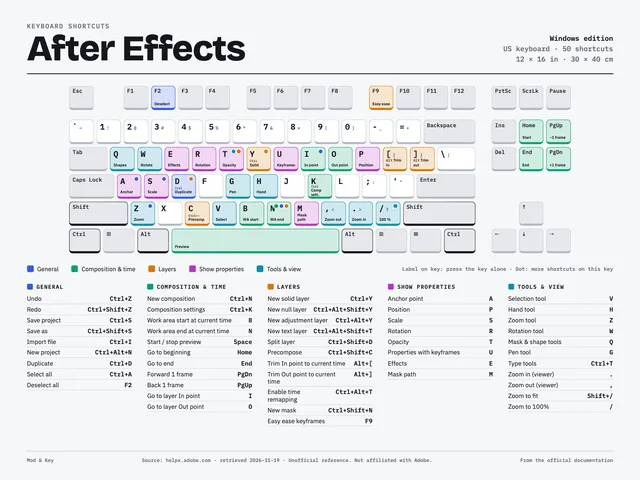
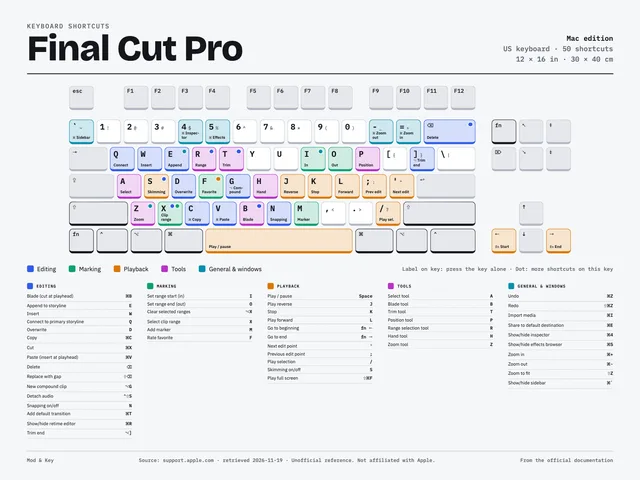
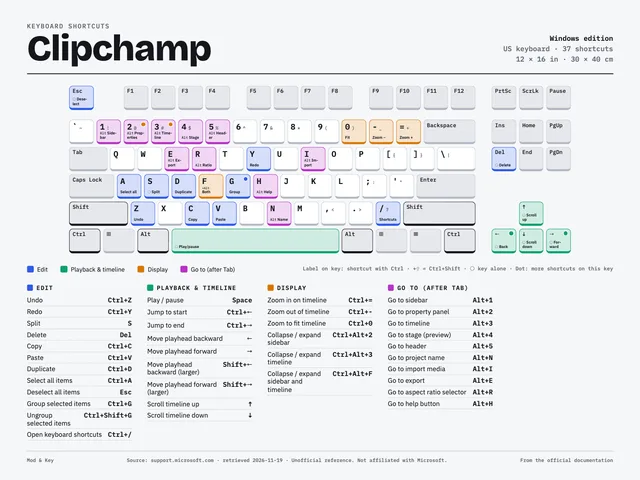
 Get it on your desk →
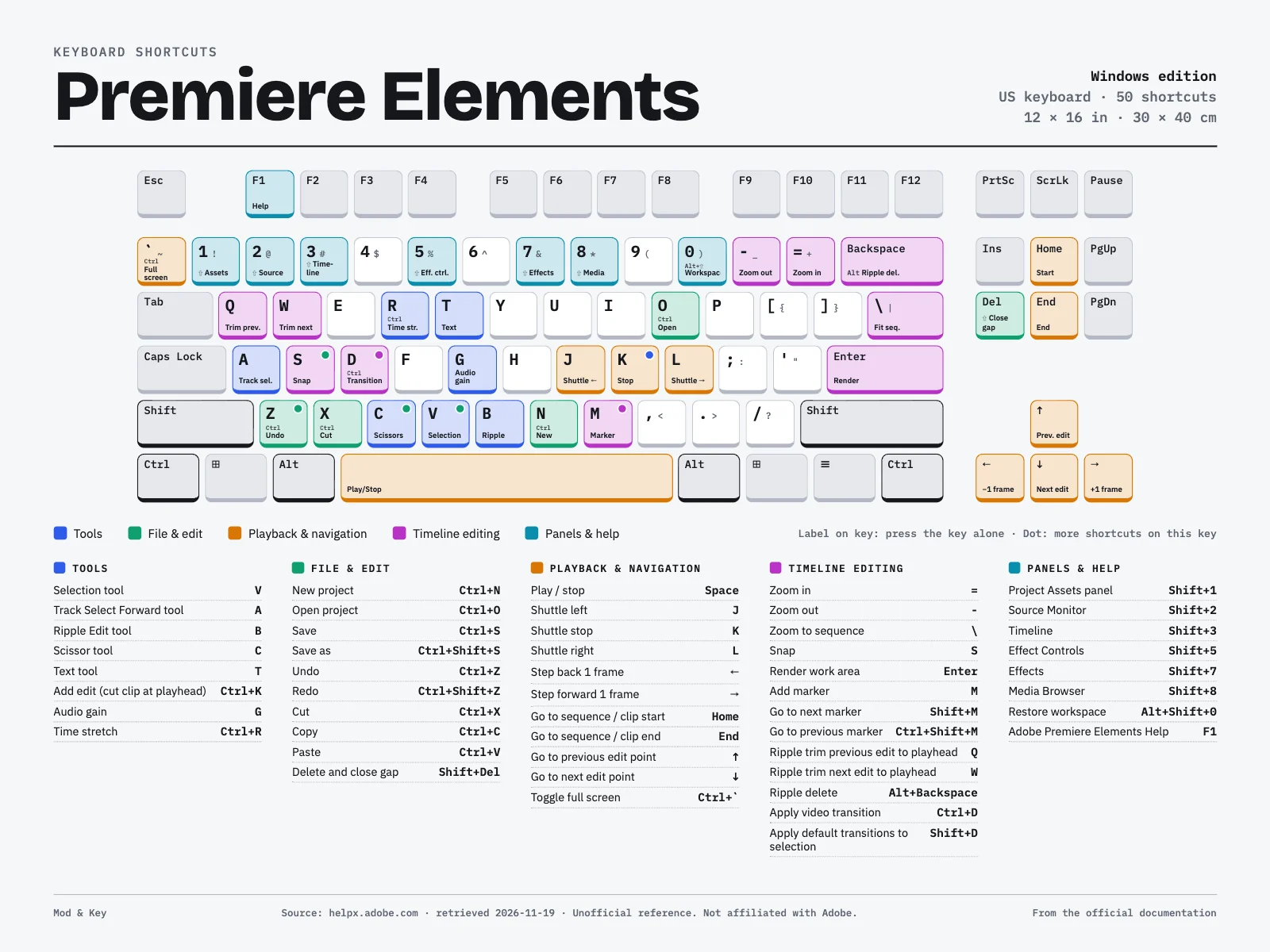
The most used Premiere Elements shortcuts on Windows: Selection tool (V), Add edit (cut clip at playhead) (Ctrl+K), Save (Ctrl+S), Undo (Ctrl+Z), Play / stop (Space). This page lists all 50, from the official documentation.
50 Premiere Elements keyboard shortcuts for Windows, grouped into Tools, File & edit, Playback & navigation, Timeline editing, Panels & help. Every key is copied from helpx.adobe.com (retrieved November 19, 2026) and shown on a real keyboard layout.
On Windows, 49 of these 50 shortcuts are the Mac ones with Ctrl in place of ⌘; 1 are different, for example Delete and close gap (Shift+Del; Mac: ⇧⌫).
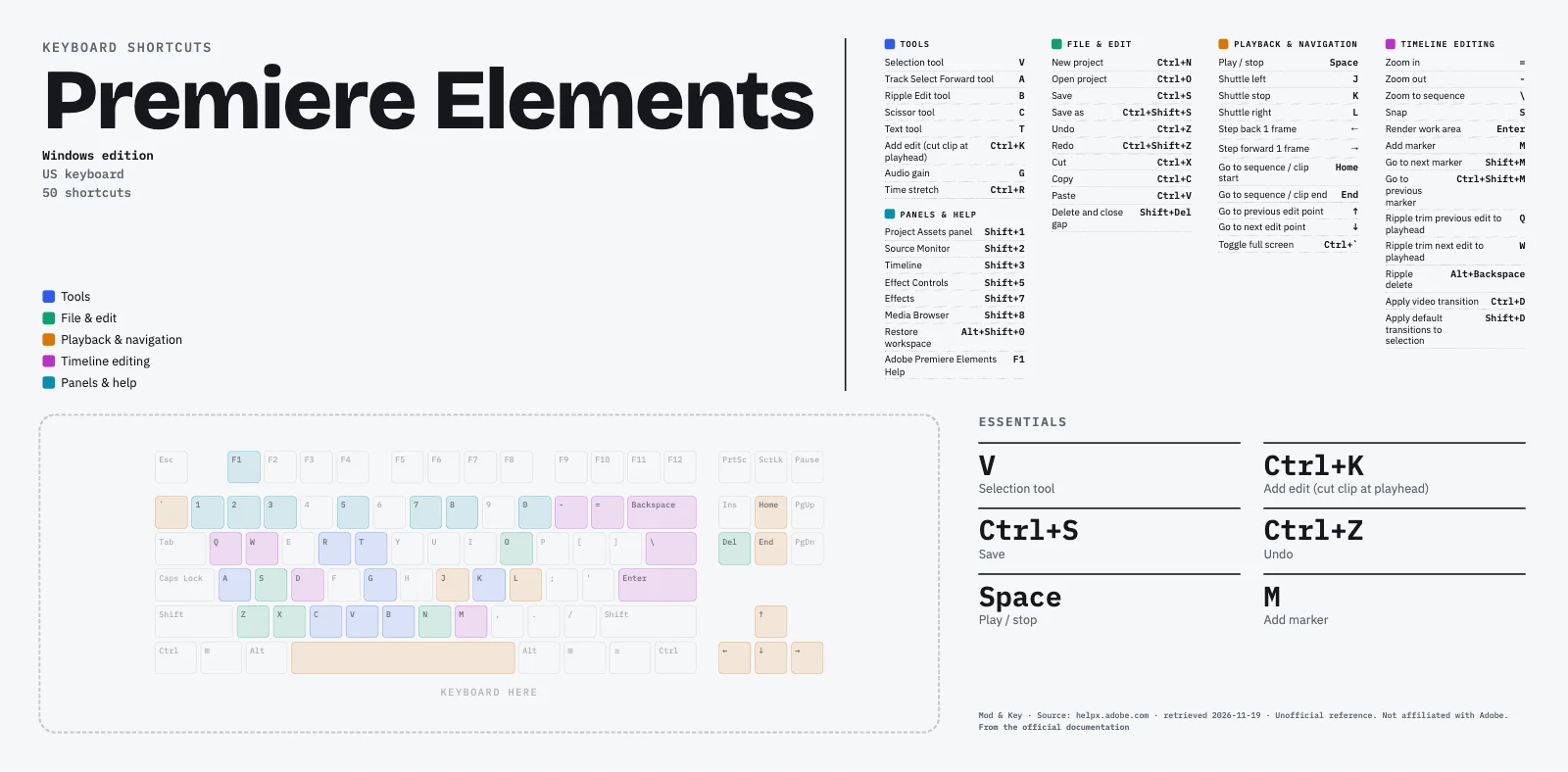
Premiere Elements keyboard map
Pick your keyboard and a modifier. Keys with a shortcut light up; point at or tap a key to see everything on it. Try it: hold Ctrl on your keyboard
More shortcuts on this key with other modifiers.
Key alone25 keys
All Premiere Elements keyboard shortcuts for Windows
No shortcut matches that search.
Tools8
| Command | Shortcut |
|---|---|
| Selection tool | V |
| Track Select Forward tool | A |
| Ripple Edit tool | B |
| Scissor tool | C |
| Text tool | T |
| Add edit (cut clip at playhead) | Ctrl+K |
| Audio gain | G |
| Time stretch | Ctrl+R |
File & edit10
| Command | Shortcut |
|---|---|
| New project | Ctrl+N |
| Open project | Ctrl+O |
| Save | Ctrl+S |
| Save as | Ctrl+Shift+S |
| Undo | Ctrl+Z |
| Redo | Ctrl+Shift+Z |
| Cut | Ctrl+X |
| Copy | Ctrl+C |
| Paste | Ctrl+V |
| Delete and close gap | Shift+Del |
Playback & navigation11
| Command | Shortcut |
|---|---|
| Play / stop | Space |
| Shuttle left | J |
| Shuttle stop | K |
| Shuttle right | L |
| Step back 1 frame | ← |
| Step forward 1 frame | → |
| Go to sequence / clip start | Home |
| Go to sequence / clip end | End |
| Go to previous edit point | ↑ |
| Go to next edit point | ↓ |
| Toggle full screen | Ctrl+` |
Timeline editing13
| Command | Shortcut |
|---|---|
| Zoom in | = |
| Zoom out | - |
| Zoom to sequence | \ |
| Snap | S |
| Render work area | Enter |
| Add marker | M |
| Go to next marker | Shift+M |
| Go to previous marker | Ctrl+Shift+M |
| Ripple trim previous edit to playhead | Q |
| Ripple trim next edit to playhead | W |
| Ripple delete | Alt+Backspace |
| Apply video transition | Ctrl+D |
| Apply default transitions to selection | Shift+D |
Panels & help8
| Command | Shortcut |
|---|---|
| Project Assets panel | Shift+1 |
| Source Monitor | Shift+2 |
| Timeline | Shift+3 |
| Effect Controls | Shift+5 |
| Effects | Shift+7 |
| Media Browser | Shift+8 |
| Restore workspace | Alt+Shift+0 |
| Adobe Premiere Elements Help | F1 |
Source: Adobe · helpx.adobe.com · retrieved . Unofficial reference. Not affiliated with Adobe. How we source shortcuts →
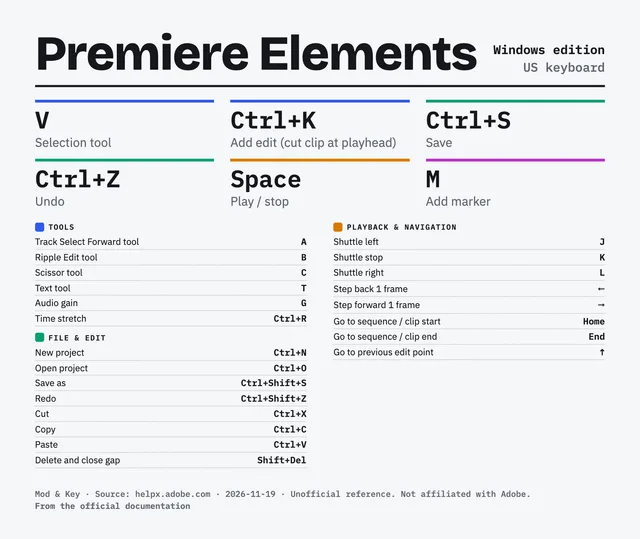
Free printable Premiere Elements cheat sheet
The essential shortcuts on one page (PDF, 24 × 20 cm), for your keyboard and language.
Premiere Elements shortcut questions
- What is the shortcut for “Selection tool” in Premiere Elements on Windows?
- Press V. That is the shortcut for “Selection tool” in Premiere Elements on Windows, as given in the official documentation.
- What is the shortcut for “Add edit (cut clip at playhead)” in Premiere Elements on Windows?
- Press Ctrl+K. That is the shortcut for “Add edit (cut clip at playhead)” in Premiere Elements on Windows, as given in the official documentation.
- What is the shortcut for “Save” in Premiere Elements on Windows?
- Press Ctrl+S. That is the shortcut for “Save” in Premiere Elements on Windows, as given in the official documentation.
- Where do these Premiere Elements shortcuts come from?
- From Adobe’s official documentation at helpx.adobe.com, retrieved November 19, 2026. Every key is copied from there, never from other websites.