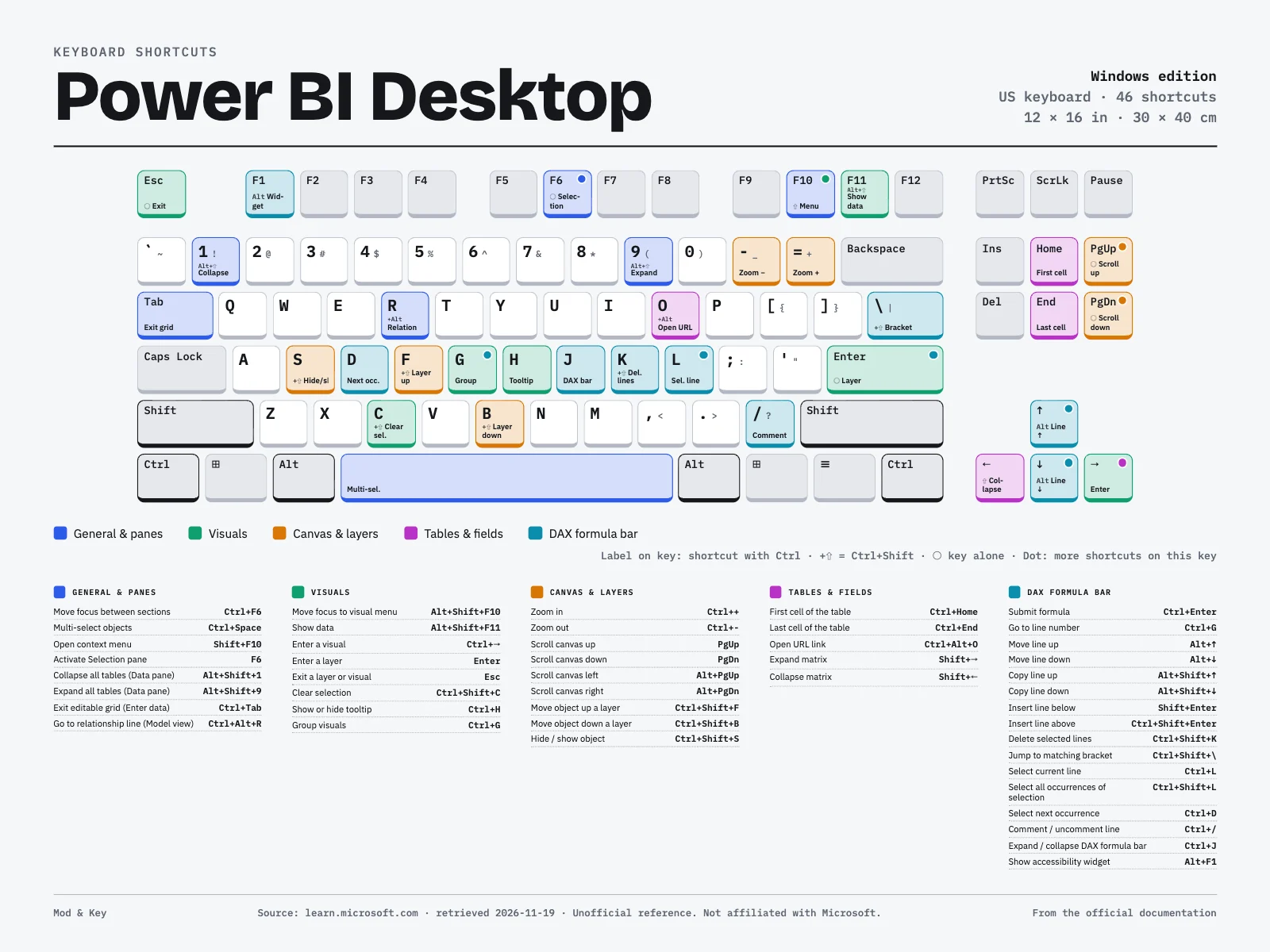
 Get it on your desk →
The most used Power BI Desktop shortcuts on Windows: Move focus between sections (Ctrl+F6), Show data (Alt+Shift+F11), Group visuals (Ctrl+G), Zoom in (Ctrl++), Submit formula (Ctrl+Enter). This page lists all 46, from the official documentation.
46 Power BI Desktop keyboard shortcuts for Windows, grouped into General & panes, Visuals, Canvas & layers, Tables & fields, DAX formula bar. Every key is copied from learn.microsoft.com (retrieved November 19, 2026) and shown on a real keyboard layout.
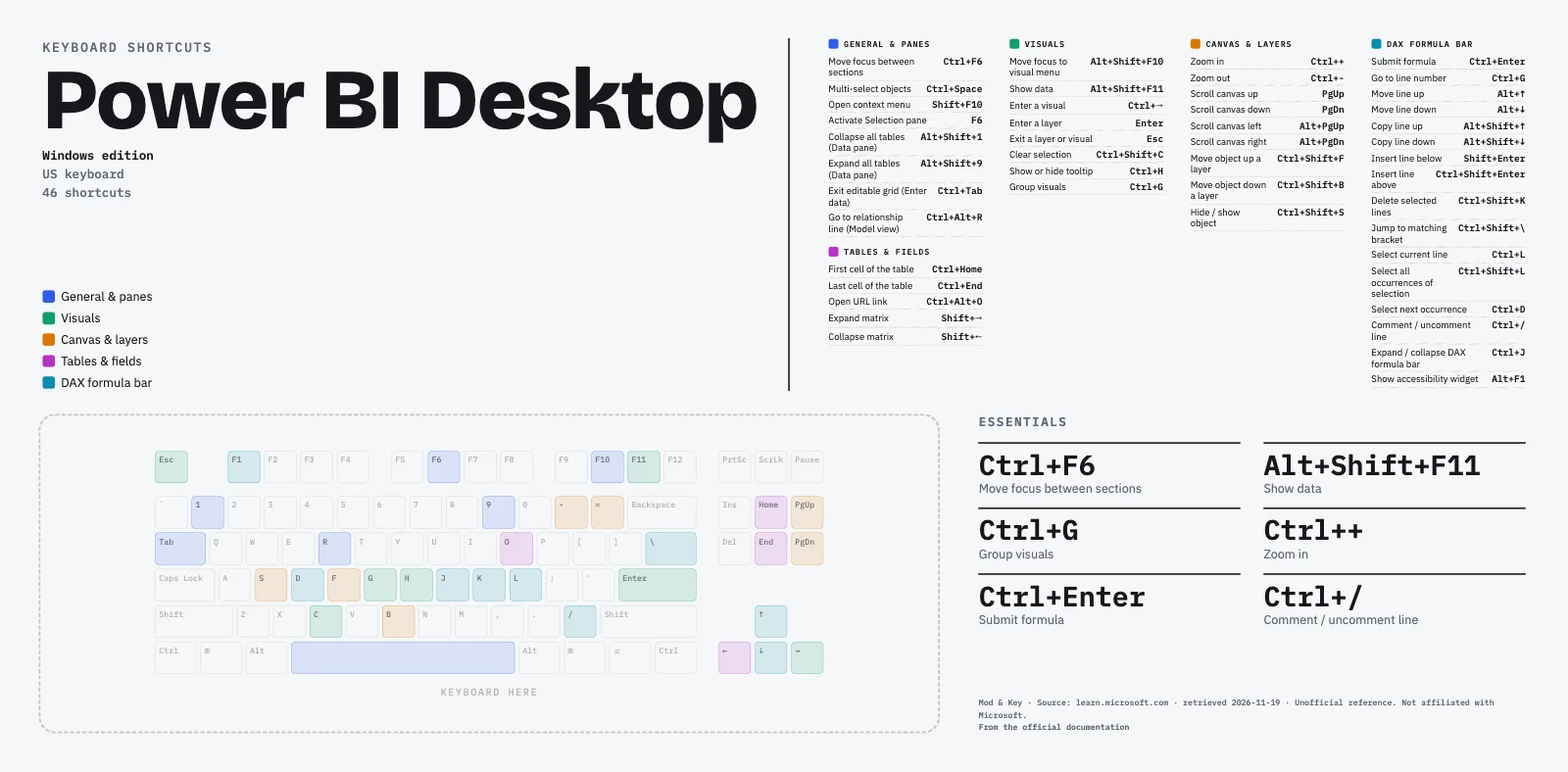
Power BI Desktop keyboard map
Pick your keyboard and a modifier. Keys with a shortcut light up; point at or tap a key to see everything on it. Try it: hold Ctrl on your keyboard
More shortcuts on this key with other modifiers.
With Ctrl15 keys
All Power BI Desktop keyboard shortcuts for Windows
No shortcut matches that search.
General & panes8
| Command | Shortcut |
|---|---|
| Move focus between sections | Ctrl+F6 |
| Multi-select objects | Ctrl+Space |
| Open context menu | Shift+F10 |
| Activate Selection pane | F6 |
| Collapse all tables (Data pane) | Alt+Shift+1 |
| Expand all tables (Data pane) | Alt+Shift+9 |
| Exit editable grid (Enter data) | Ctrl+Tab |
| Go to relationship line (Model view) | Ctrl+Alt+R |
Visuals8
| Command | Shortcut |
|---|---|
| Move focus to visual menu | Alt+Shift+F10 |
| Show data | Alt+Shift+F11 |
| Enter a visual | Ctrl+→ |
| Enter a layer | Enter |
| Exit a layer or visual | Esc |
| Clear selection | Ctrl+Shift+C |
| Show or hide tooltip | Ctrl+H |
| Group visuals | Ctrl+G |
Canvas & layers9
| Command | Shortcut |
|---|---|
| Zoom in | Ctrl++ |
| Zoom out | Ctrl+- |
| Scroll canvas up | PgUp |
| Scroll canvas down | PgDn |
| Scroll canvas left | Alt+PgUp |
| Scroll canvas right | Alt+PgDn |
| Move object up a layer | Ctrl+Shift+F |
| Move object down a layer | Ctrl+Shift+B |
| Hide / show object | Ctrl+Shift+S |
Tables & fields5
| Command | Shortcut |
|---|---|
| First cell of the table | Ctrl+Home |
| Last cell of the table | Ctrl+End |
| Open URL link | Ctrl+Alt+O |
| Expand matrix | Shift+→ |
| Collapse matrix | Shift+← |
DAX formula bar16
| Command | Shortcut |
|---|---|
| Submit formula | Ctrl+Enter |
| Go to line number | Ctrl+G |
| Move line up | Alt+↑ |
| Move line down | Alt+↓ |
| Copy line up | Alt+Shift+↑ |
| Copy line down | Alt+Shift+↓ |
| Insert line below | Shift+Enter |
| Insert line above | Ctrl+Shift+Enter |
| Delete selected lines | Ctrl+Shift+K |
| Jump to matching bracket | Ctrl+Shift+\ |
| Select current line | Ctrl+L |
| Select all occurrences of selection | Ctrl+Shift+L |
| Select next occurrence | Ctrl+D |
| Comment / uncomment line | Ctrl+/ |
| Expand / collapse DAX formula bar | Ctrl+J |
| Show accessibility widget | Alt+F1 |
Source: Microsoft · learn.microsoft.com · retrieved . Unofficial reference. Not affiliated with Microsoft. How we source shortcuts →
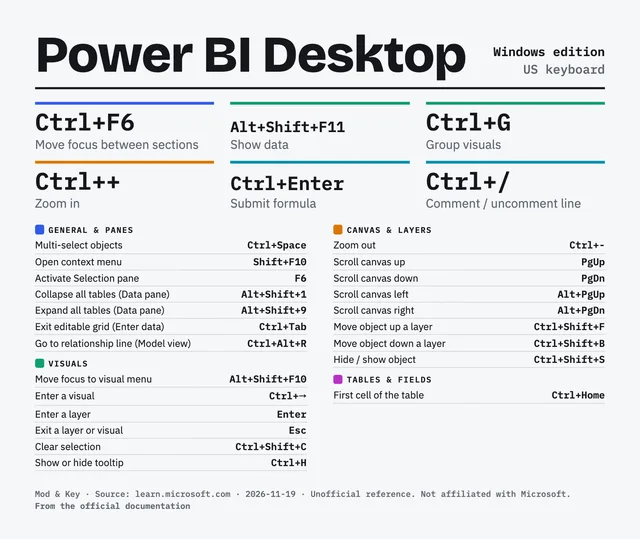
Free printable Power BI Desktop cheat sheet
The essential shortcuts on one page (PDF, 24 × 20 cm), for your keyboard and language.
Power BI Desktop shortcut questions
- What is the shortcut for “Move focus between sections” in Power BI Desktop on Windows?
- Press Ctrl+F6. That is the shortcut for “Move focus between sections” in Power BI Desktop on Windows, as given in the official documentation.
- What is the shortcut for “Show data” in Power BI Desktop on Windows?
- Press Alt+Shift+F11. That is the shortcut for “Show data” in Power BI Desktop on Windows, as given in the official documentation.
- What is the shortcut for “Group visuals” in Power BI Desktop on Windows?
- Press Ctrl+G. That is the shortcut for “Group visuals” in Power BI Desktop on Windows, as given in the official documentation.
- Where do these Power BI Desktop shortcuts come from?
- From Microsoft’s official documentation at learn.microsoft.com, retrieved November 19, 2026. Every key is copied from there, never from other websites.