 Get it on your desk →
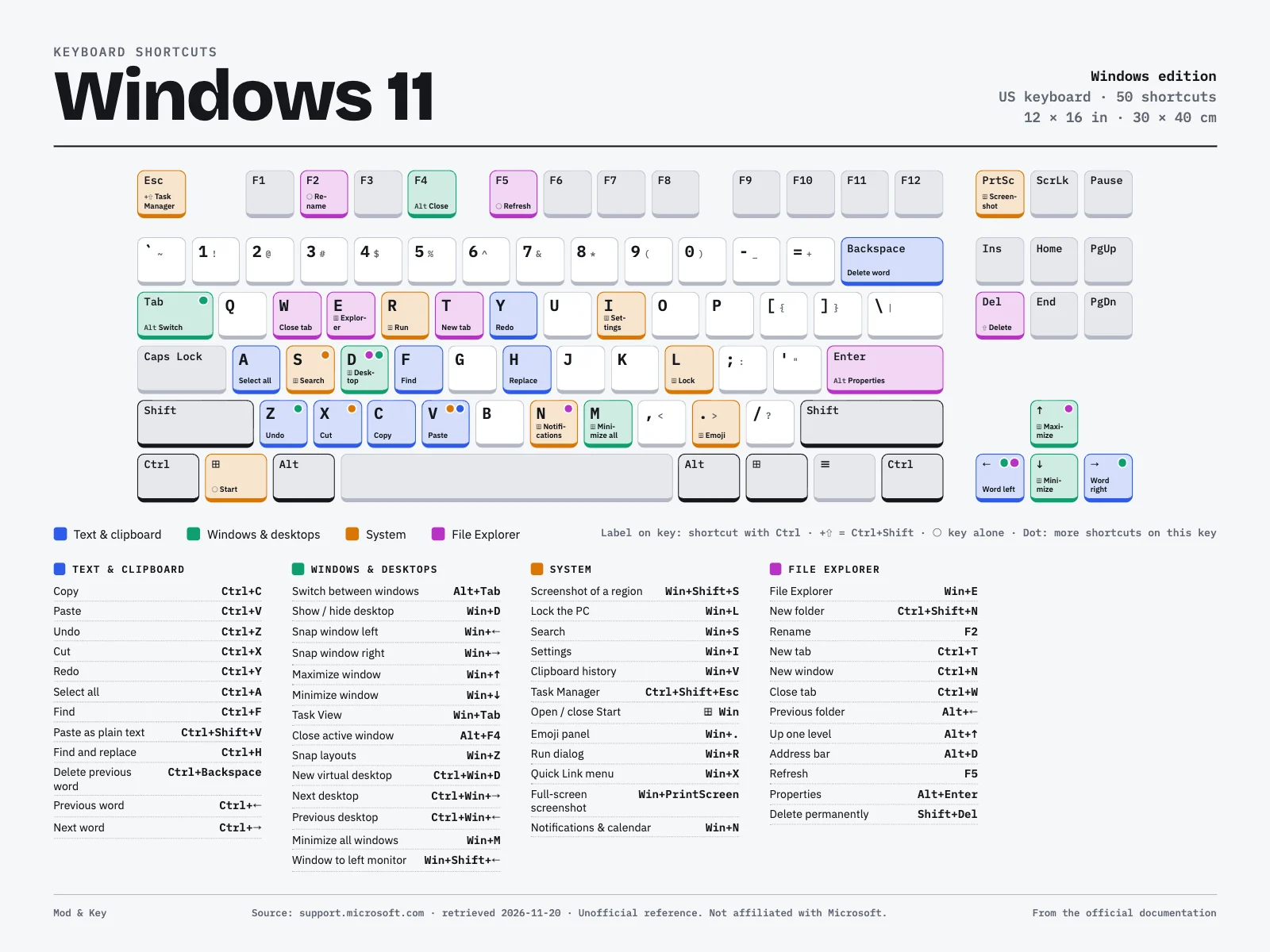
The most used Windows 11 shortcuts on Windows: Copy (Ctrl+C), Paste (Ctrl+V), Undo (Ctrl+Z), Switch between windows (Alt+Tab), Screenshot of a region (Win+Shift+S). This page lists all 50, from the official documentation.
50 Windows 11 keyboard shortcuts for Windows, grouped into Text & clipboard, Windows & desktops, System, File Explorer. Every key is copied from support.microsoft.com (retrieved November 20, 2026) and shown on a real keyboard layout.
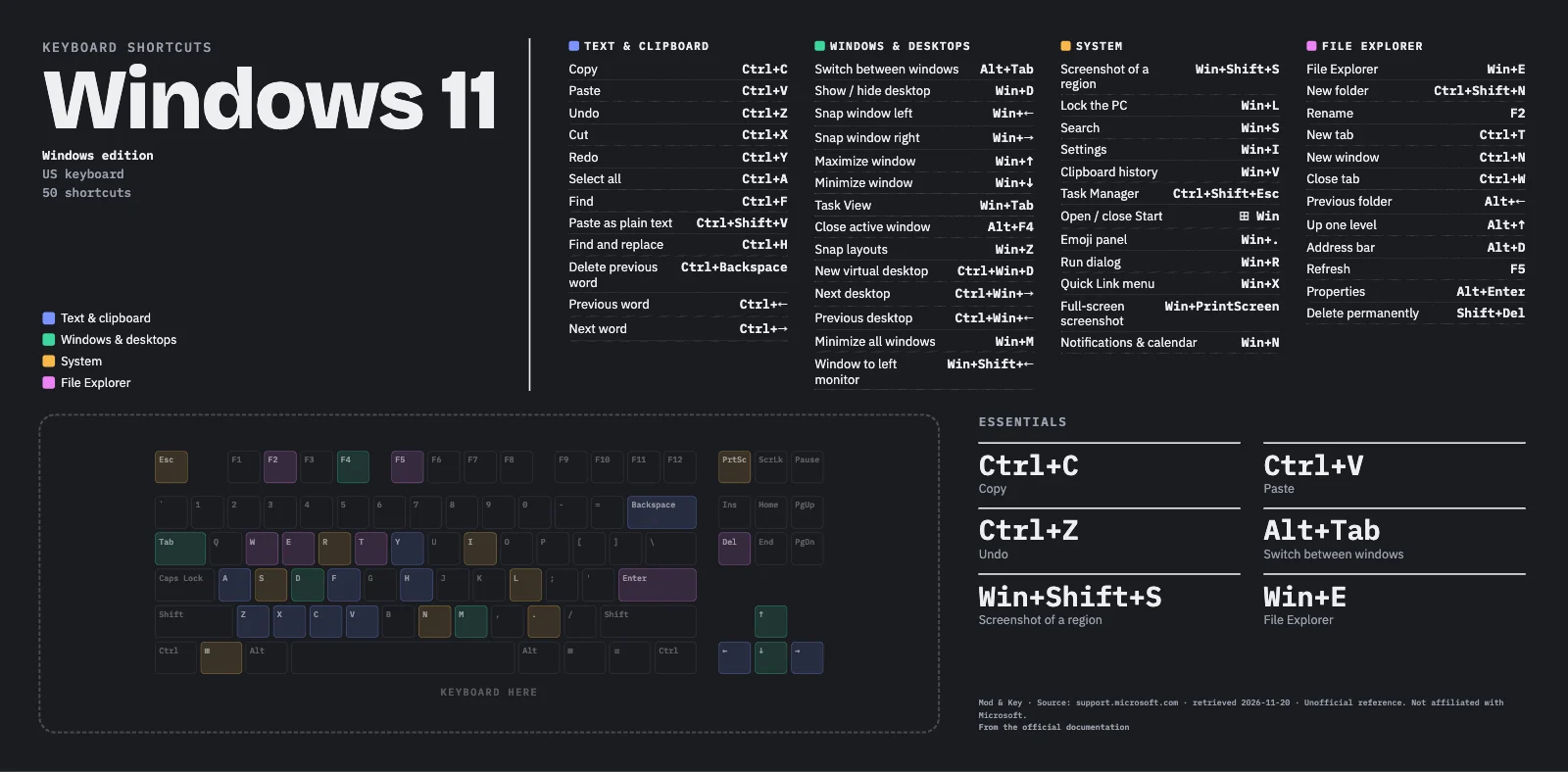
Windows 11 keyboard map
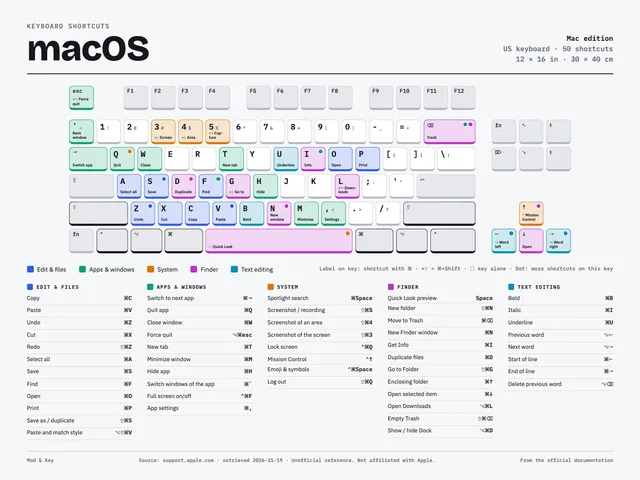
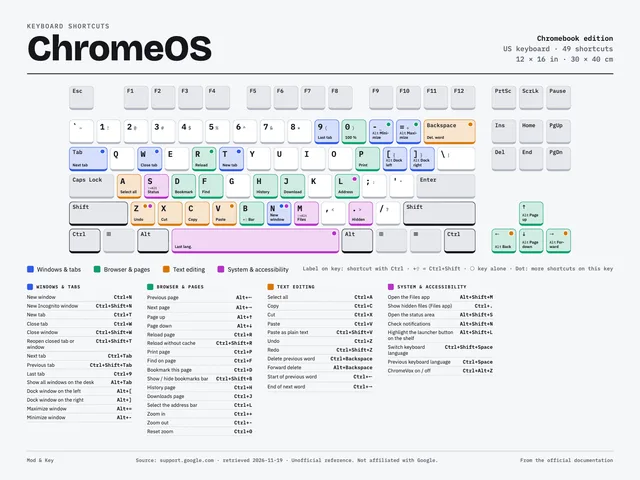
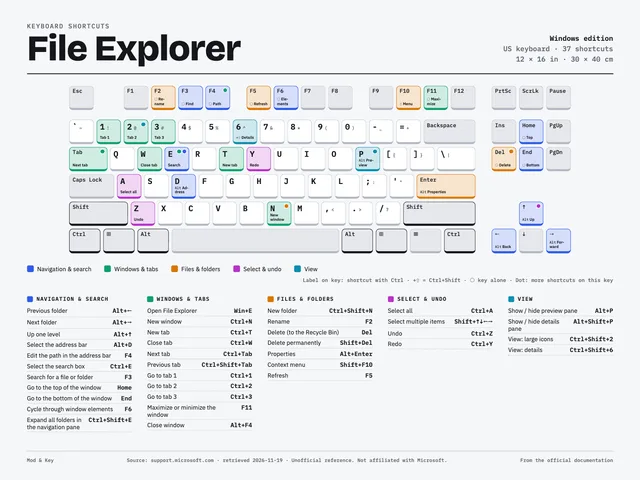
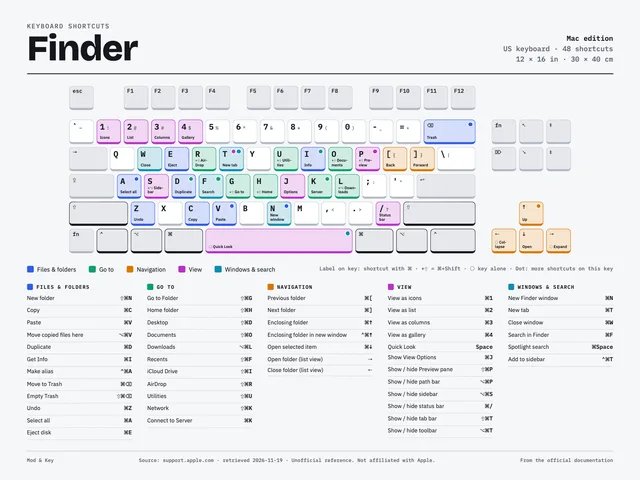
Pick your keyboard and a modifier. Keys with a shortcut light up; point at or tap a key to see everything on it. Try it: hold Ctrl on your keyboard
More shortcuts on this key with other modifiers.
With Win18 keys
All Windows 11 keyboard shortcuts for Windows
No shortcut matches that search.
Text & clipboard12
| Command | Shortcut |
|---|---|
| Copy | Ctrl+C |
| Paste | Ctrl+V |
| Undo | Ctrl+Z |
| Cut | Ctrl+X |
| Redo | Ctrl+Y |
| Select all | Ctrl+A |
| Find | Ctrl+F |
| Paste as plain text | Ctrl+Shift+V |
| Find and replace | Ctrl+H |
| Delete previous word | Ctrl+Backspace |
| Previous word | Ctrl+← |
| Next word | Ctrl+→ |
Windows & desktops14
| Command | Shortcut |
|---|---|
| Switch between windows | Alt+Tab |
| Show / hide desktop | Win+D |
| Snap window left | Win+← |
| Snap window right | Win+→ |
| Maximize window | Win+↑ |
| Minimize window | Win+↓ |
| Task View | Win+Tab |
| Close active window | Alt+F4 |
| Snap layouts | Win+Z |
| New virtual desktop | Ctrl+Win+D |
| Next desktop | Ctrl+Win+→ |
| Previous desktop | Ctrl+Win+← |
| Minimize all windows | Win+M |
| Window to left monitor | Win+Shift+← |
System12
| Command | Shortcut |
|---|---|
| Screenshot of a region | Win+Shift+S |
| Lock the PC | Win+L |
| Search | Win+S |
| Settings | Win+I |
| Clipboard history | Win+V |
| Task Manager | Ctrl+Shift+Esc |
| Open / close Start | ⊞ Win |
| Emoji panel | Win+. |
| Run dialog | Win+R |
| Quick Link menu | Win+X |
| Full-screen screenshot | Win+PrintScreen |
| Notifications & calendar | Win+N |
File Explorer12
| Command | Shortcut |
|---|---|
| File Explorer | Win+E |
| New folder | Ctrl+Shift+N |
| Rename | F2 |
| New tab | Ctrl+T |
| New window | Ctrl+N |
| Close tab | Ctrl+W |
| Previous folder | Alt+← |
| Up one level | Alt+↑ |
| Address bar | Alt+D |
| Refresh | F5 |
| Properties | Alt+Enter |
| Delete permanently | Shift+Del |
Source: Microsoft · support.microsoft.com · retrieved . Unofficial reference. Not affiliated with Microsoft. How we source shortcuts →
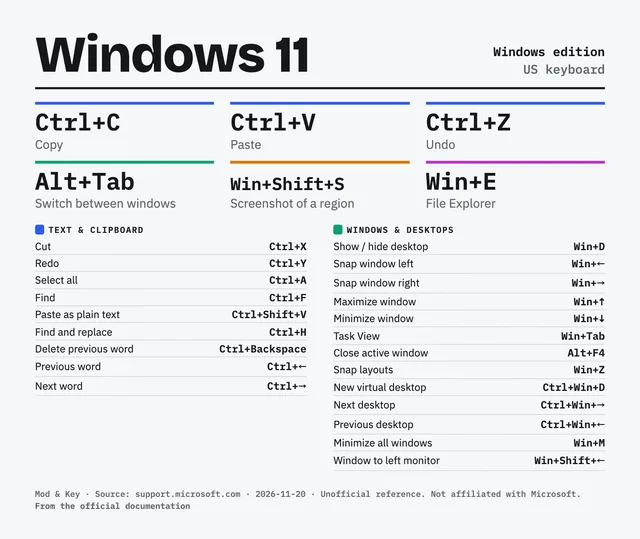
Free printable Windows 11 cheat sheet
The essential shortcuts on one page (PDF, 24 × 20 cm), for your keyboard and language.
Windows 11 shortcut questions
- What is the shortcut for “Copy” in Windows 11 on Windows?
- Press Ctrl+C. That is the shortcut for “Copy” in Windows 11 on Windows, as given in the official documentation.
- What is the shortcut for “Paste” in Windows 11 on Windows?
- Press Ctrl+V. That is the shortcut for “Paste” in Windows 11 on Windows, as given in the official documentation.
- What is the shortcut for “Undo” in Windows 11 on Windows?
- Press Ctrl+Z. That is the shortcut for “Undo” in Windows 11 on Windows, as given in the official documentation.
- Where do these Windows 11 shortcuts come from?
- From Microsoft’s official documentation at support.microsoft.com, retrieved November 20, 2026. Every key is copied from there, never from other websites.