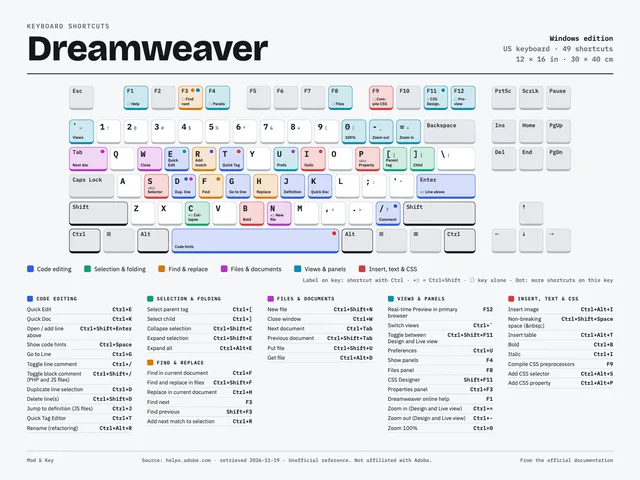
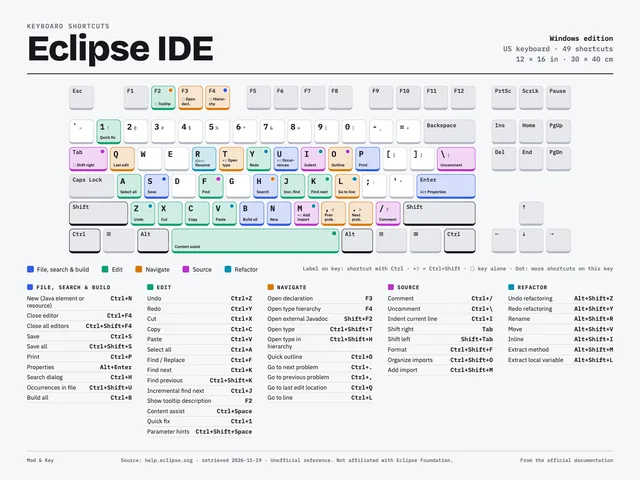
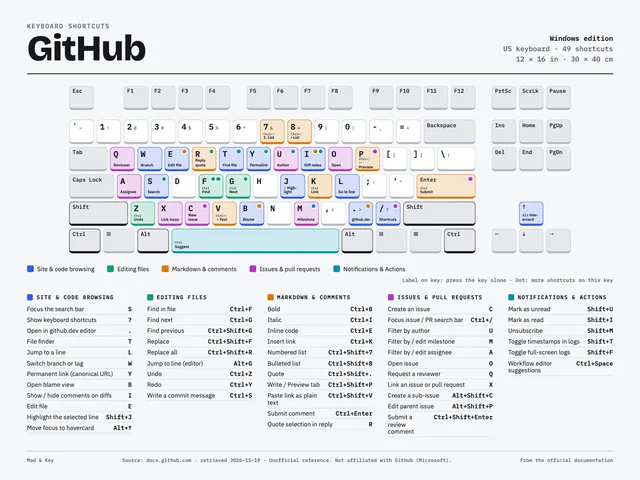
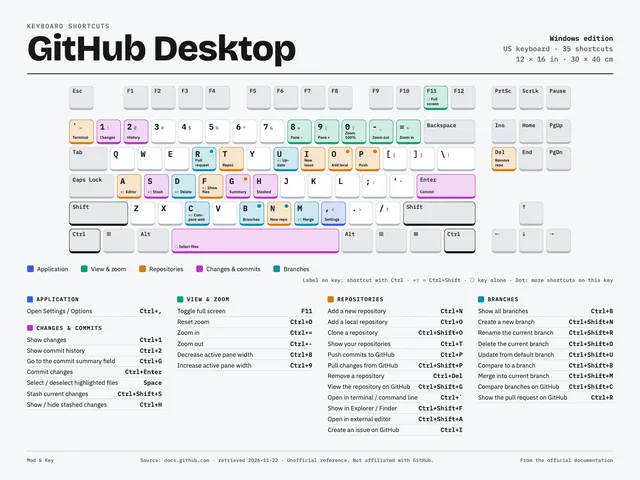
 Get it on your desk →
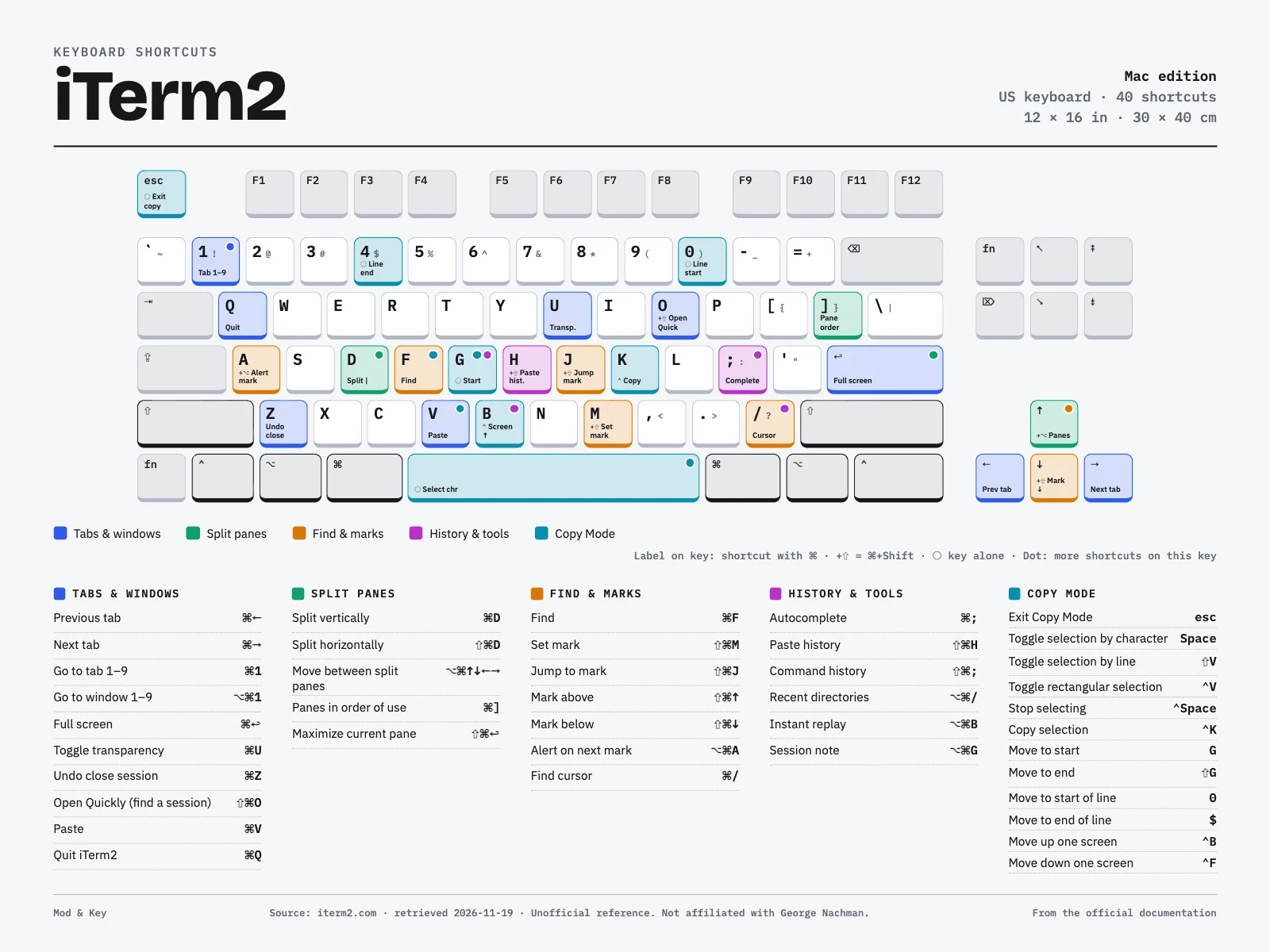
The most used iTerm2 shortcuts on Mac: Next tab (⌘→), Open Quickly (find a session) (⇧⌘O), Split vertically (⌘D), Split horizontally (⇧⌘D), Find (⌘F). This page lists all 40, from the official documentation.
40 iTerm2 keyboard shortcuts for Mac, grouped into Tabs & windows, Split panes, Find & marks, History & tools, Copy Mode. Every key is copied from iterm2.com (retrieved November 19, 2026) and shown on a real keyboard layout.
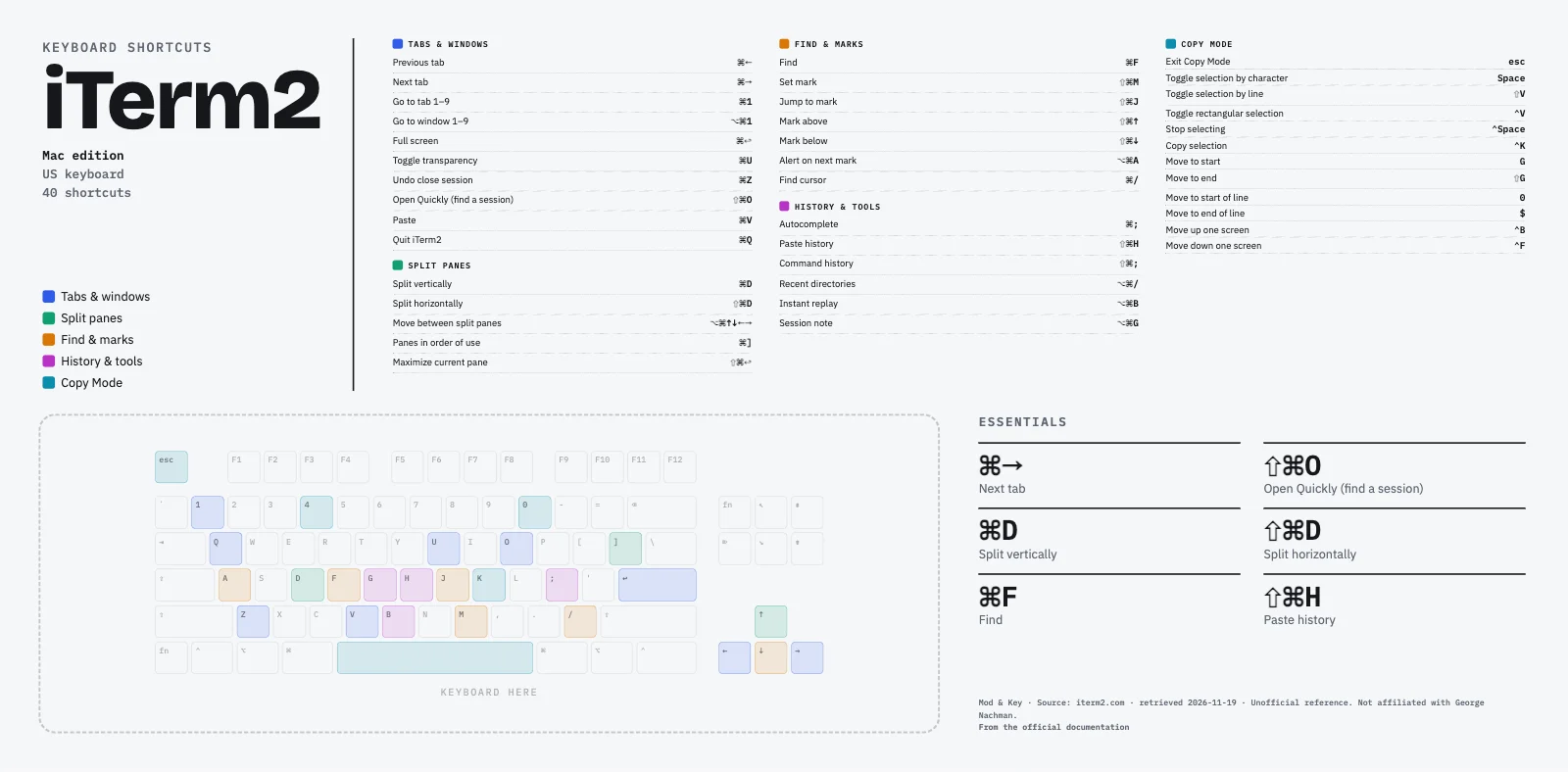
iTerm2 keyboard map
Pick your keyboard and a modifier. Keys with a shortcut light up; point at or tap a key to see everything on it. Try it: hold ⌘ Cmd on your keyboard
More shortcuts on this key with other modifiers.
With ⌘13 keys
All iTerm2 keyboard shortcuts for Mac
No shortcut matches that search.
Tabs & windows10
| Command | Shortcut |
|---|---|
| Previous tab | ⌘← |
| Next tab | ⌘→ |
| Go to tab 1–9 | ⌘1 |
| Go to window 1–9 | ⌥⌘1 |
| Full screen | ⌘↩ |
| Toggle transparency | ⌘U |
| Undo close session | ⌘Z |
| Open Quickly (find a session) | ⇧⌘O |
| Paste | ⌘V |
| Quit iTerm2 | ⌘Q |
Split panes5
| Command | Shortcut |
|---|---|
| Split vertically | ⌘D |
| Split horizontally | ⇧⌘D |
| Move between split panes | ⌥⌘↑↓←→ |
| Panes in order of use | ⌘] |
| Maximize current pane | ⇧⌘↩ |
Find & marks7
| Command | Shortcut |
|---|---|
| Find | ⌘F |
| Set mark | ⇧⌘M |
| Jump to mark | ⇧⌘J |
| Mark above | ⇧⌘↑ |
| Mark below | ⇧⌘↓ |
| Alert on next mark | ⌥⌘A |
| Find cursor | ⌘/ |
History & tools6
| Command | Shortcut |
|---|---|
| Autocomplete | ⌘; |
| Paste history | ⇧⌘H |
| Command history | ⇧⌘; |
| Recent directories | ⌥⌘/ |
| Instant replay | ⌥⌘B |
| Session note | ⌥⌘G |
Copy Mode12
| Command | Shortcut |
|---|---|
| Exit Copy Mode | esc |
| Toggle selection by character | Space |
| Toggle selection by line | ⇧V |
| Toggle rectangular selection | ⌃V |
| Stop selecting | ⌃Space |
| Copy selection | ⌃K |
| Move to start | G |
| Move to end | ⇧G |
| Move to start of line | 0 |
| Move to end of line | $ |
| Move up one screen | ⌃B |
| Move down one screen | ⌃F |
Source: George Nachman · iterm2.com · retrieved . Unofficial reference. Not affiliated with George Nachman. How we source shortcuts →
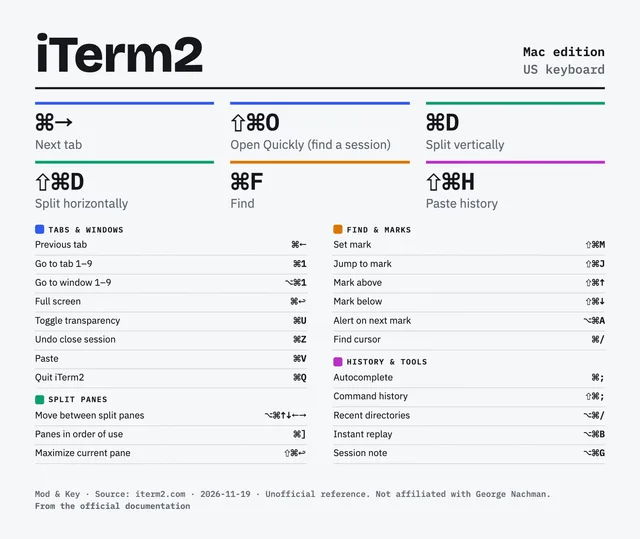
Free printable iTerm2 cheat sheet
The essential shortcuts on one page (PDF, 24 × 20 cm), for your keyboard and language.
iTerm2 shortcut questions
- What is the shortcut for “Next tab” in iTerm2 on Mac?
- Press ⌘→. That is the shortcut for “Next tab” in iTerm2 on Mac, as given in the official documentation.
- What is the shortcut for “Open Quickly (find a session)” in iTerm2 on Mac?
- Press ⇧⌘O. That is the shortcut for “Open Quickly (find a session)” in iTerm2 on Mac, as given in the official documentation.
- What is the shortcut for “Split vertically” in iTerm2 on Mac?
- Press ⌘D. That is the shortcut for “Split vertically” in iTerm2 on Mac, as given in the official documentation.
- Where do these iTerm2 shortcuts come from?
- From George Nachman’s official documentation at iterm2.com, retrieved November 19, 2026. Every key is copied from there, never from other websites.