 Get it on your desk →
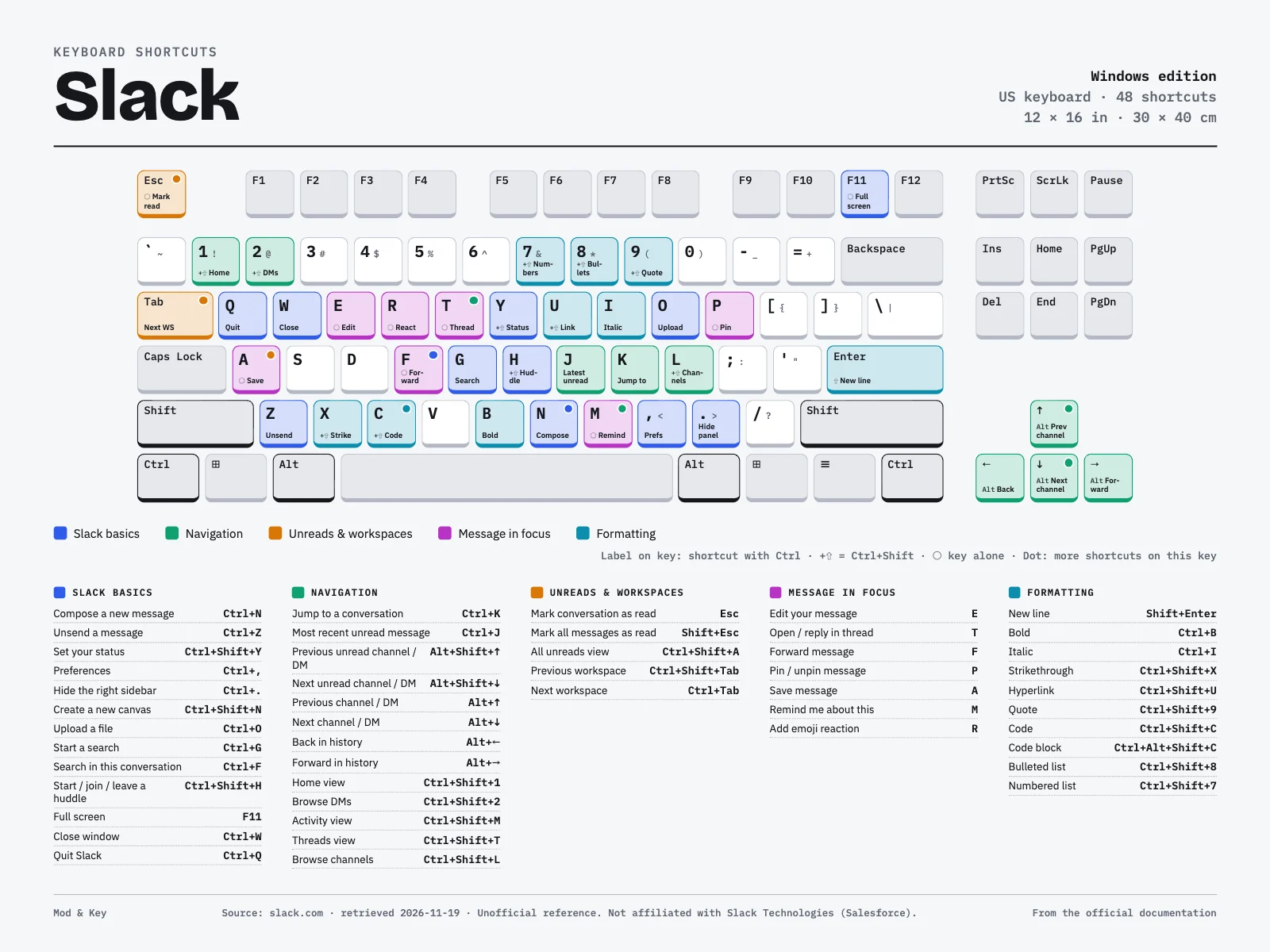
The most used Slack shortcuts on Windows: Compose a new message (Ctrl+N), Unsend a message (Ctrl+Z), Start a search (Ctrl+G), Mark conversation as read (Esc), Open / reply in thread (T). This page lists all 48, from the official documentation.
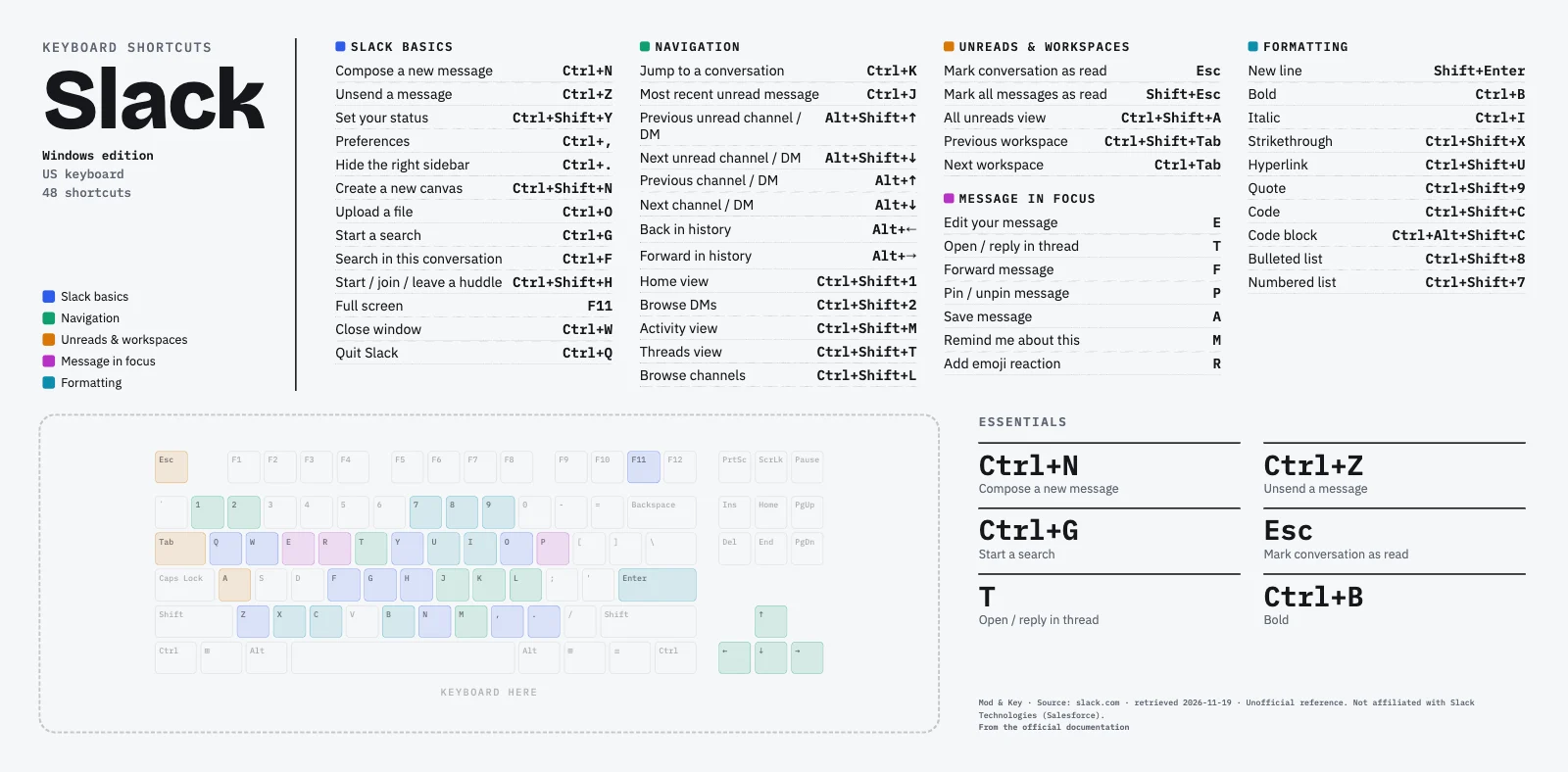
48 Slack keyboard shortcuts for Windows, grouped into Slack basics, Navigation, Unreads & workspaces, Message in focus, Formatting. Every key is copied from slack.com (retrieved November 19, 2026) and shown on a real keyboard layout.
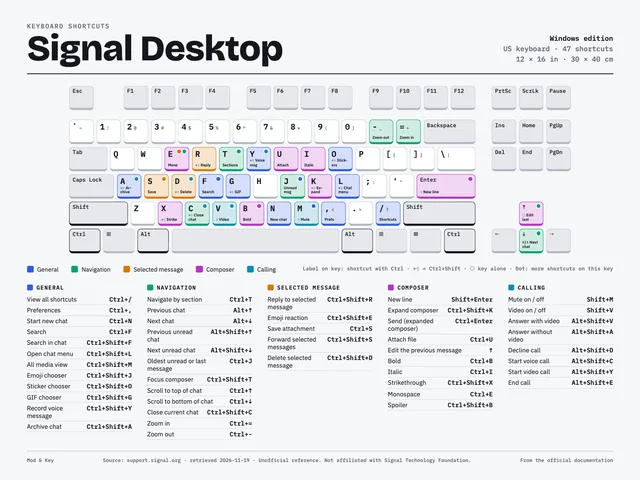
On Windows, 40 of these 47 shortcuts are the Mac ones with Ctrl in place of ⌘; 7 are different, for example Full screen (F11; Mac: ⌃⌘F), Back in history (Alt+←; Mac: ⌘[), Forward in history (Alt+→; Mac: ⌘]).
Slack keyboard map
Pick your keyboard and a modifier. Keys with a shortcut light up; point at or tap a key to see everything on it. Try it: hold Ctrl on your keyboard
More shortcuts on this key with other modifiers.
With Ctrl+Shift16 keys
All Slack keyboard shortcuts for Windows
No shortcut matches that search.
Slack basics13
| Command | Shortcut |
|---|---|
| Compose a new message | Ctrl+N |
| Unsend a message | Ctrl+Z |
| Set your status | Ctrl+Shift+Y |
| Preferences | Ctrl+, |
| Hide the right sidebar | Ctrl+. |
| Create a new canvas | Ctrl+Shift+N |
| Upload a file | Ctrl+O |
| Start a search | Ctrl+G |
| Search in this conversation | Ctrl+F |
| Start / join / leave a huddle | Ctrl+Shift+H |
| Full screen | F11 |
| Close window | Ctrl+W |
| Quit Slack | Ctrl+Q |
Navigation13
| Command | Shortcut |
|---|---|
| Jump to a conversation | Ctrl+K |
| Most recent unread message | Ctrl+J |
| Previous unread channel / DM | Alt+Shift+↑ |
| Next unread channel / DM | Alt+Shift+↓ |
| Previous channel / DM | Alt+↑ |
| Next channel / DM | Alt+↓ |
| Back in history | Alt+← |
| Forward in history | Alt+→ |
| Home view | Ctrl+Shift+1 |
| Browse DMs | Ctrl+Shift+2 |
| Activity view | Ctrl+Shift+M |
| Threads view | Ctrl+Shift+T |
| Browse channels | Ctrl+Shift+L |
Unreads & workspaces5
| Command | Shortcut |
|---|---|
| Mark conversation as read | Esc |
| Mark all messages as read | Shift+Esc |
| All unreads view | Ctrl+Shift+A |
| Previous workspace | Ctrl+Shift+Tab |
| Next workspace | Ctrl+Tab |
Message in focus7
| Command | Shortcut |
|---|---|
| Edit your message | E |
| Open / reply in thread | T |
| Forward message | F |
| Pin / unpin message | P |
| Save message | A |
| Remind me about this | M |
| Add emoji reaction | R |
Formatting10
| Command | Shortcut |
|---|---|
| New line | Shift+Enter |
| Bold | Ctrl+B |
| Italic | Ctrl+I |
| Strikethrough | Ctrl+Shift+X |
| Hyperlink | Ctrl+Shift+U |
| Quote | Ctrl+Shift+9 |
| Code | Ctrl+Shift+C |
| Code block | Ctrl+Alt+Shift+C |
| Bulleted list | Ctrl+Shift+8 |
| Numbered list | Ctrl+Shift+7 |
Source: Slack Technologies (Salesforce) · slack.com · retrieved . Unofficial reference. Not affiliated with Slack Technologies (Salesforce). How we source shortcuts →
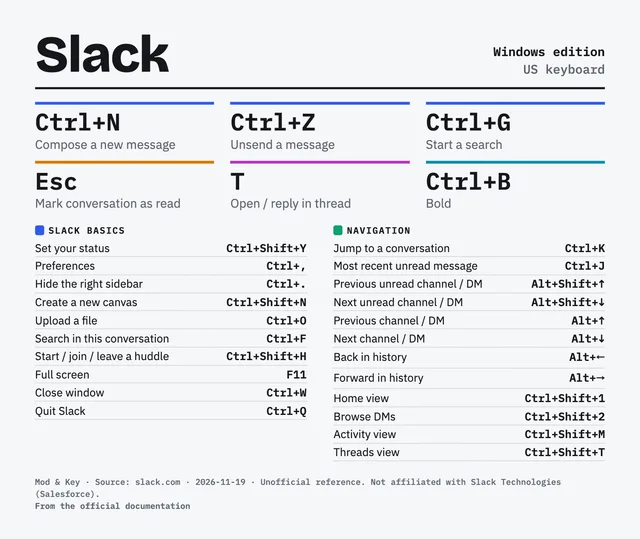
Free printable Slack cheat sheet
The essential shortcuts on one page (PDF, 24 × 20 cm), for your keyboard and language.
Slack shortcut questions
- What is the shortcut for “Compose a new message” in Slack on Windows?
- Press Ctrl+N. That is the shortcut for “Compose a new message” in Slack on Windows, as given in the official documentation.
- What is the shortcut for “Unsend a message” in Slack on Windows?
- Press Ctrl+Z. That is the shortcut for “Unsend a message” in Slack on Windows, as given in the official documentation.
- What is the shortcut for “Start a search” in Slack on Windows?
- Press Ctrl+G. That is the shortcut for “Start a search” in Slack on Windows, as given in the official documentation.
- Where do these Slack shortcuts come from?
- From Slack Technologies (Salesforce)’s official documentation at slack.com, retrieved November 19, 2026. Every key is copied from there, never from other websites.