 Get it on your desk →
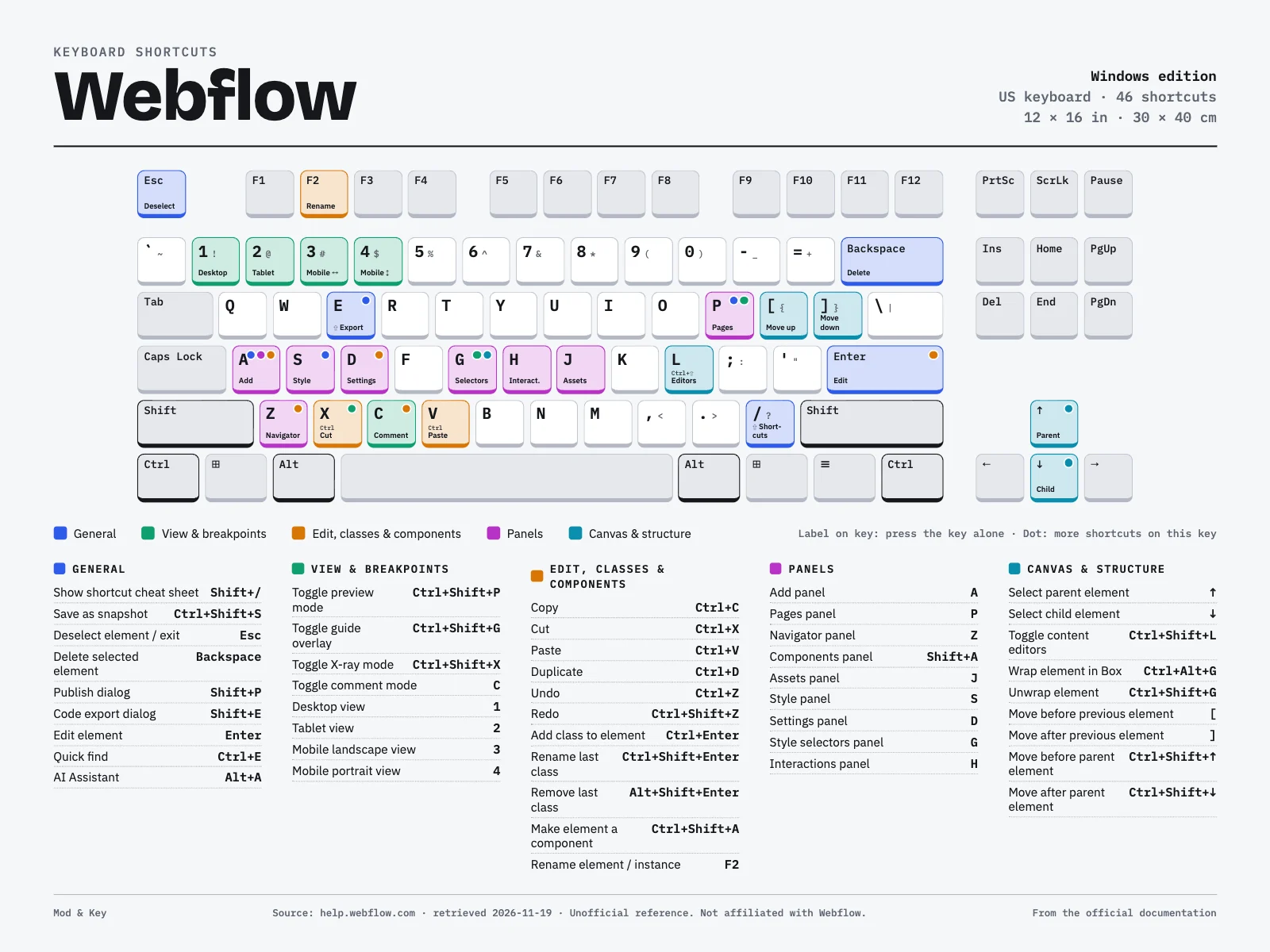
The most used Webflow shortcuts on Windows: Publish dialog (Shift+P), Quick find (Ctrl+E), Toggle preview mode (Ctrl+Shift+P), Duplicate (Ctrl+D), Undo (Ctrl+Z). This page lists all 46, from the official documentation.
46 Webflow keyboard shortcuts for Windows, grouped into General, View & breakpoints, Edit, classes & components, Panels, Canvas & structure. Every key is copied from help.webflow.com (retrieved November 19, 2026) and shown on a real keyboard layout.
On Windows, 45 of these 46 shortcuts are the Mac ones with Ctrl in place of ⌘; 1 are different, for example Rename element / instance (F2; Mac: ⌥R).
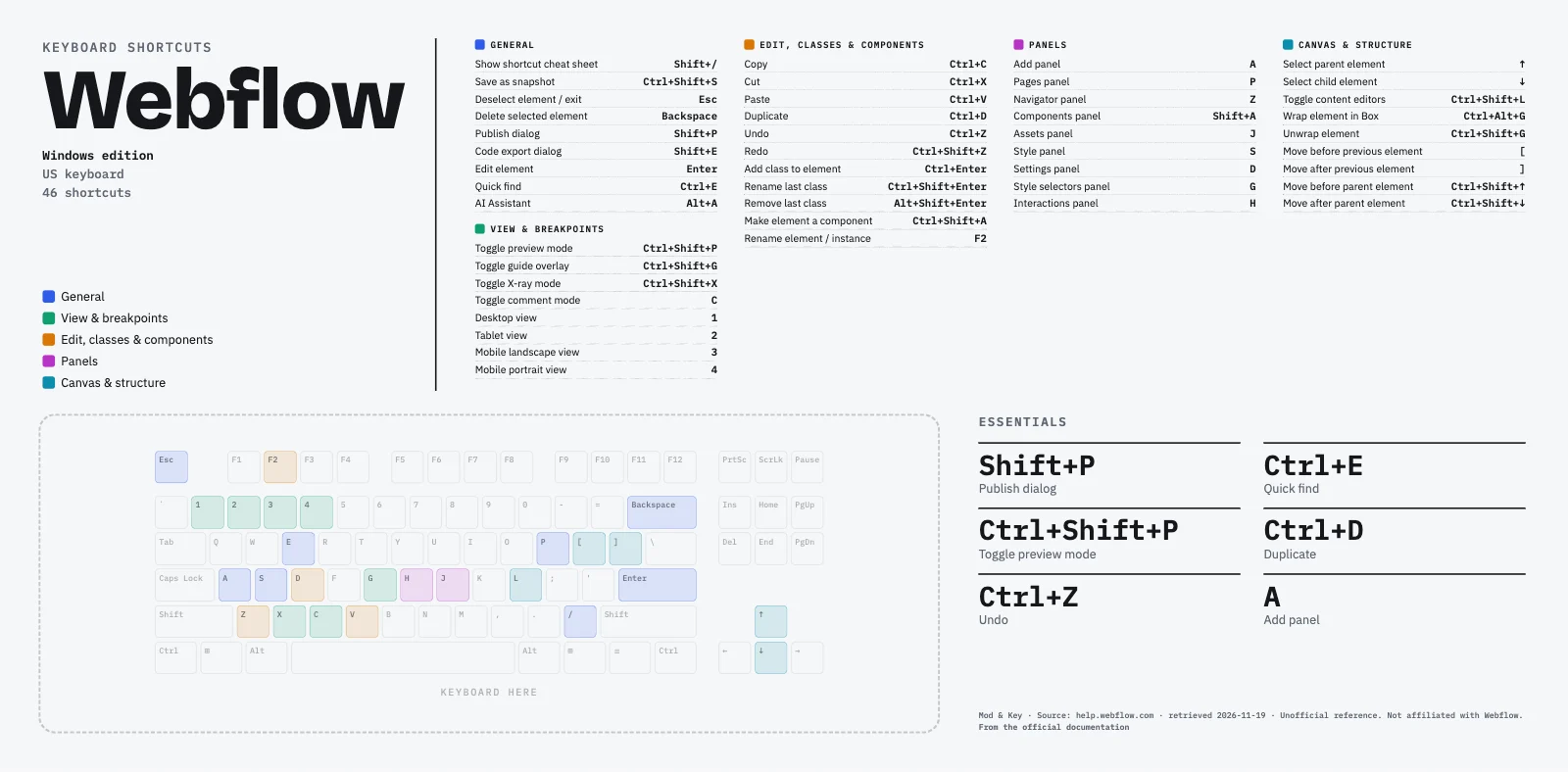
Webflow keyboard map
Pick your keyboard and a modifier. Keys with a shortcut light up; point at or tap a key to see everything on it. Try it: hold Ctrl on your keyboard
More shortcuts on this key with other modifiers.
Key alone21 keys
All Webflow keyboard shortcuts for Windows
No shortcut matches that search.
General9
| Command | Shortcut |
|---|---|
| Show shortcut cheat sheet | Shift+/ |
| Save as snapshot | Ctrl+Shift+S |
| Deselect element / exit | Esc |
| Delete selected element | Backspace |
| Publish dialog | Shift+P |
| Code export dialog | Shift+E |
| Edit element | Enter |
| Quick find | Ctrl+E |
| AI Assistant | Alt+A |
View & breakpoints8
| Command | Shortcut |
|---|---|
| Toggle preview mode | Ctrl+Shift+P |
| Toggle guide overlay | Ctrl+Shift+G |
| Toggle X-ray mode | Ctrl+Shift+X |
| Toggle comment mode | C |
| Desktop view | 1 |
| Tablet view | 2 |
| Mobile landscape view | 3 |
| Mobile portrait view | 4 |
Edit, classes & components11
| Command | Shortcut |
|---|---|
| Copy | Ctrl+C |
| Cut | Ctrl+X |
| Paste | Ctrl+V |
| Duplicate | Ctrl+D |
| Undo | Ctrl+Z |
| Redo | Ctrl+Shift+Z |
| Add class to element | Ctrl+Enter |
| Rename last class | Ctrl+Shift+Enter |
| Remove last class | Alt+Shift+Enter |
| Make element a component | Ctrl+Shift+A |
| Rename element / instance | F2 |
Panels9
| Command | Shortcut |
|---|---|
| Add panel | A |
| Pages panel | P |
| Navigator panel | Z |
| Components panel | Shift+A |
| Assets panel | J |
| Style panel | S |
| Settings panel | D |
| Style selectors panel | G |
| Interactions panel | H |
Canvas & structure9
| Command | Shortcut |
|---|---|
| Select parent element | ↑ |
| Select child element | ↓ |
| Toggle content editors | Ctrl+Shift+L |
| Wrap element in Box | Ctrl+Alt+G |
| Unwrap element | Ctrl+Shift+G |
| Move before previous element | [ |
| Move after previous element | ] |
| Move before parent element | Ctrl+Shift+↑ |
| Move after parent element | Ctrl+Shift+↓ |
Source: Webflow · help.webflow.com · retrieved . Unofficial reference. Not affiliated with Webflow. How we source shortcuts →
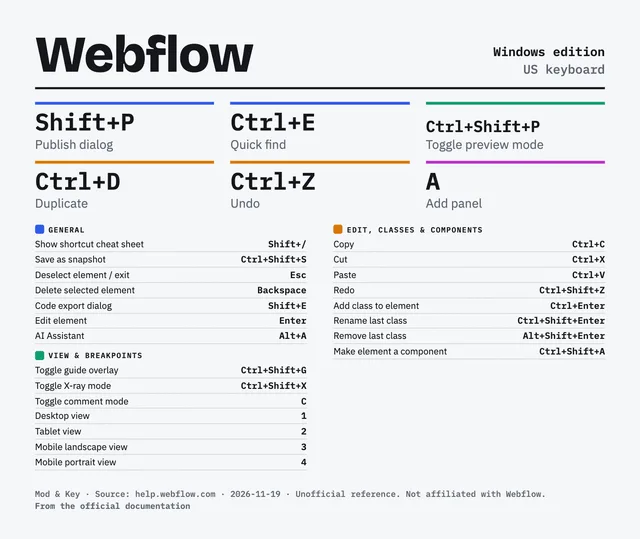
Free printable Webflow cheat sheet
The essential shortcuts on one page (PDF, 24 × 20 cm), for your keyboard and language.
Webflow shortcut questions
- What is the shortcut for “Publish dialog” in Webflow on Windows?
- Press Shift+P. That is the shortcut for “Publish dialog” in Webflow on Windows, as given in the official documentation.
- What is the shortcut for “Quick find” in Webflow on Windows?
- Press Ctrl+E. That is the shortcut for “Quick find” in Webflow on Windows, as given in the official documentation.
- What is the shortcut for “Toggle preview mode” in Webflow on Windows?
- Press Ctrl+Shift+P. That is the shortcut for “Toggle preview mode” in Webflow on Windows, as given in the official documentation.
- Where do these Webflow shortcuts come from?
- From Webflow’s official documentation at help.webflow.com, retrieved November 19, 2026. Every key is copied from there, never from other websites.