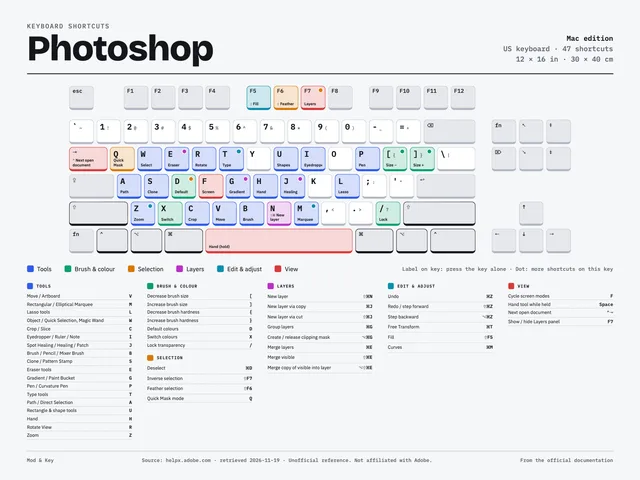
 Get it on your desk →
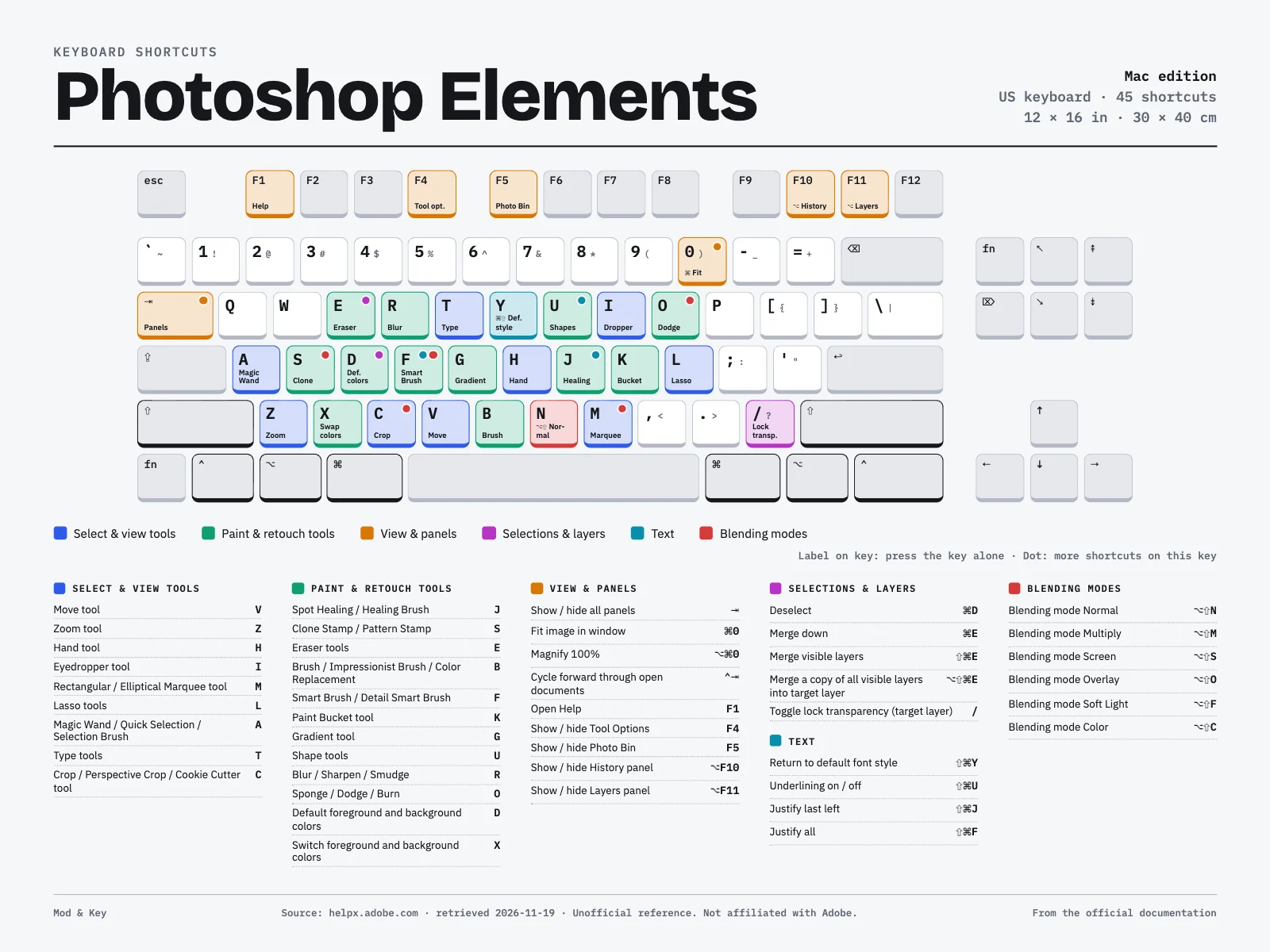
The most used Photoshop Elements shortcuts on Mac: Move tool (V), Zoom tool (Z), Brush / Impressionist Brush / Color Replacement (B), Show / hide all panels (⇥), Deselect (⌘D). This page lists all 45, from the official documentation.
45 Photoshop Elements keyboard shortcuts for Mac, grouped into Select & view tools, Paint & retouch tools, View & panels, Selections & layers, Text, Blending modes. Every key is copied from helpx.adobe.com (retrieved November 19, 2026) and shown on a real keyboard layout.
On Mac, 42 of these 45 shortcuts are the Windows ones with ⌘ in place of Ctrl; 3 are different, for example Cycle forward through open documents (⌃⇥; Windows: Ctrl+Tab), Show / hide History panel (⌥F10; Windows: F10), Show / hide Layers panel (⌥F11; Windows: F11).
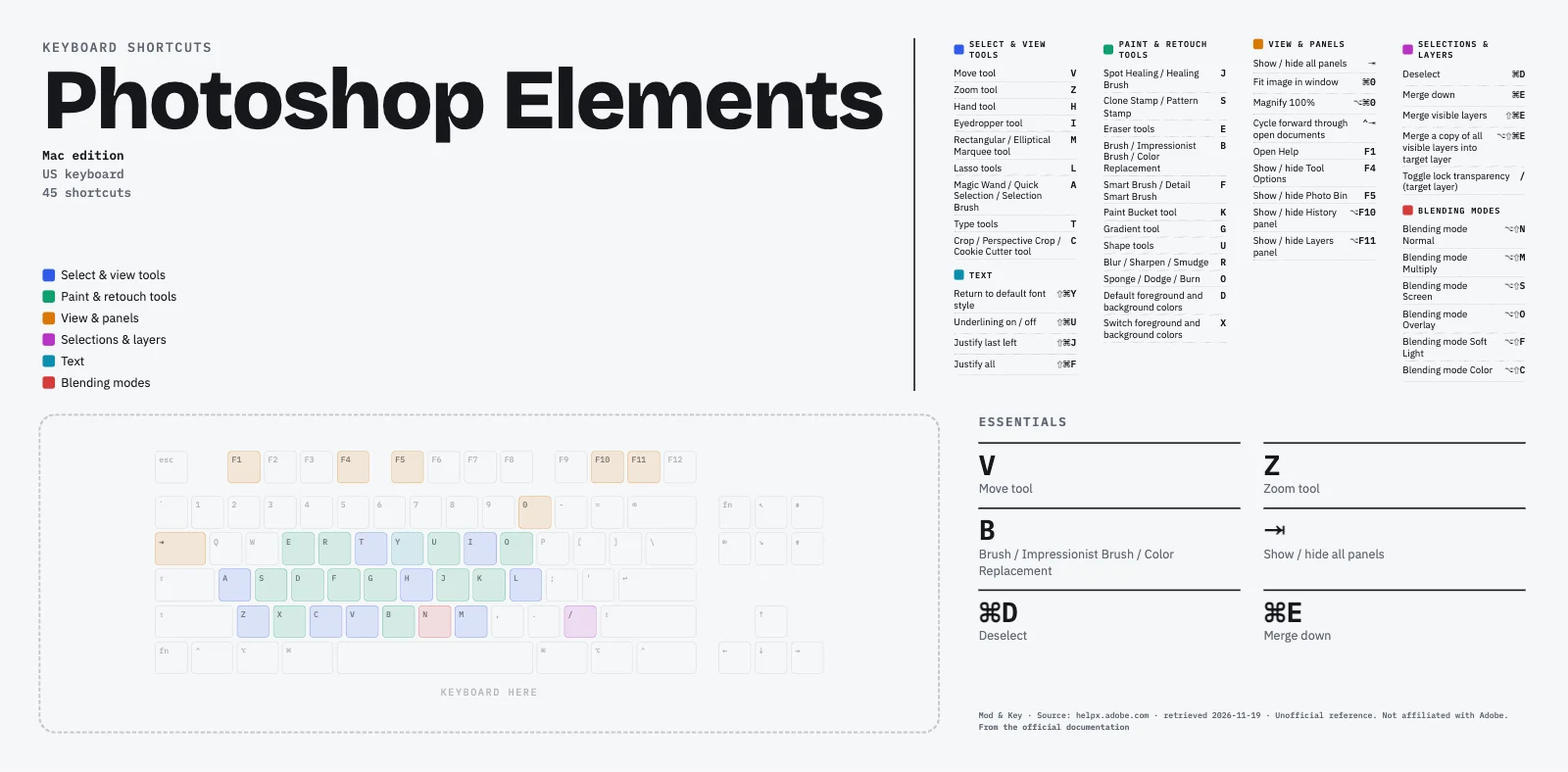
Photoshop Elements keyboard map
Pick your keyboard and a modifier. Keys with a shortcut light up; point at or tap a key to see everything on it. Try it: hold ⌘ Cmd on your keyboard
More shortcuts on this key with other modifiers.
Key alone26 keys
All Photoshop Elements keyboard shortcuts for Mac
No shortcut matches that search.
Select & view tools9
| Command | Shortcut |
|---|---|
| Move tool | V |
| Zoom tool | Z |
| Hand tool | H |
| Eyedropper tool | I |
| Rectangular / Elliptical Marquee tool | M |
| Lasso tools | L |
| Magic Wand / Quick Selection / Selection Brush | A |
| Type tools | T |
| Crop / Perspective Crop / Cookie Cutter tool | C |
Paint & retouch tools12
| Command | Shortcut |
|---|---|
| Spot Healing / Healing Brush | J |
| Clone Stamp / Pattern Stamp | S |
| Eraser tools | E |
| Brush / Impressionist Brush / Color Replacement | B |
| Smart Brush / Detail Smart Brush | F |
| Paint Bucket tool | K |
| Gradient tool | G |
| Shape tools | U |
| Blur / Sharpen / Smudge | R |
| Sponge / Dodge / Burn | O |
| Default foreground and background colors | D |
| Switch foreground and background colors | X |
View & panels9
| Command | Shortcut |
|---|---|
| Show / hide all panels | ⇥ |
| Fit image in window | ⌘0 |
| Magnify 100% | ⌥⌘0 |
| Cycle forward through open documents | ⌃⇥ |
| Open Help | F1 |
| Show / hide Tool Options | F4 |
| Show / hide Photo Bin | F5 |
| Show / hide History panel | ⌥F10 |
| Show / hide Layers panel | ⌥F11 |
Selections & layers5
| Command | Shortcut |
|---|---|
| Deselect | ⌘D |
| Merge down | ⌘E |
| Merge visible layers | ⇧⌘E |
| Merge a copy of all visible layers into target layer | ⌥⇧⌘E |
| Toggle lock transparency (target layer) | / |
Text4
| Command | Shortcut |
|---|---|
| Return to default font style | ⇧⌘Y |
| Underlining on / off | ⇧⌘U |
| Justify last left | ⇧⌘J |
| Justify all | ⇧⌘F |
Blending modes6
| Command | Shortcut |
|---|---|
| Blending mode Normal | ⌥⇧N |
| Blending mode Multiply | ⌥⇧M |
| Blending mode Screen | ⌥⇧S |
| Blending mode Overlay | ⌥⇧O |
| Blending mode Soft Light | ⌥⇧F |
| Blending mode Color | ⌥⇧C |
Source: Adobe · helpx.adobe.com · retrieved . Unofficial reference. Not affiliated with Adobe. How we source shortcuts →
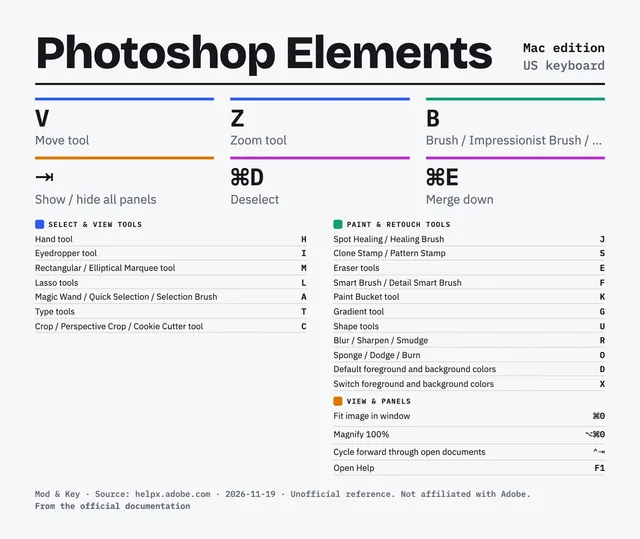
Free printable Photoshop Elements cheat sheet
The essential shortcuts on one page (PDF, 24 × 20 cm), for your keyboard and language.
Photoshop Elements shortcut questions
- What is the shortcut for “Move tool” in Photoshop Elements on Mac?
- Press V. That is the shortcut for “Move tool” in Photoshop Elements on Mac, as given in the official documentation.
- What is the shortcut for “Zoom tool” in Photoshop Elements on Mac?
- Press Z. That is the shortcut for “Zoom tool” in Photoshop Elements on Mac, as given in the official documentation.
- What is the shortcut for “Brush / Impressionist Brush / Color Replacement” in Photoshop Elements on Mac?
- Press B. That is the shortcut for “Brush / Impressionist Brush / Color Replacement” in Photoshop Elements on Mac, as given in the official documentation.
- Where do these Photoshop Elements shortcuts come from?
- From Adobe’s official documentation at helpx.adobe.com, retrieved November 19, 2026. Every key is copied from there, never from other websites.