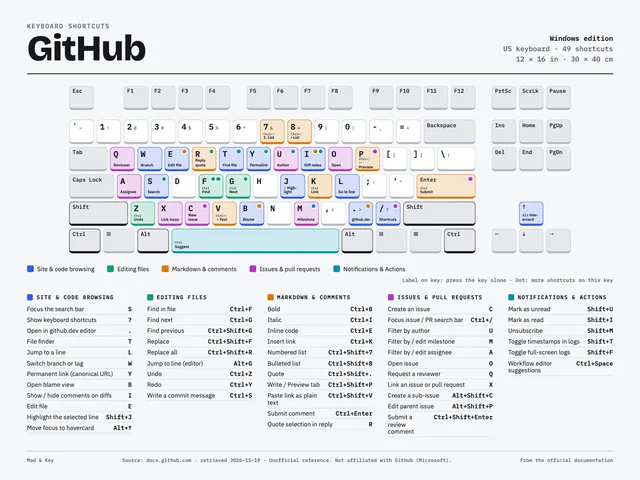
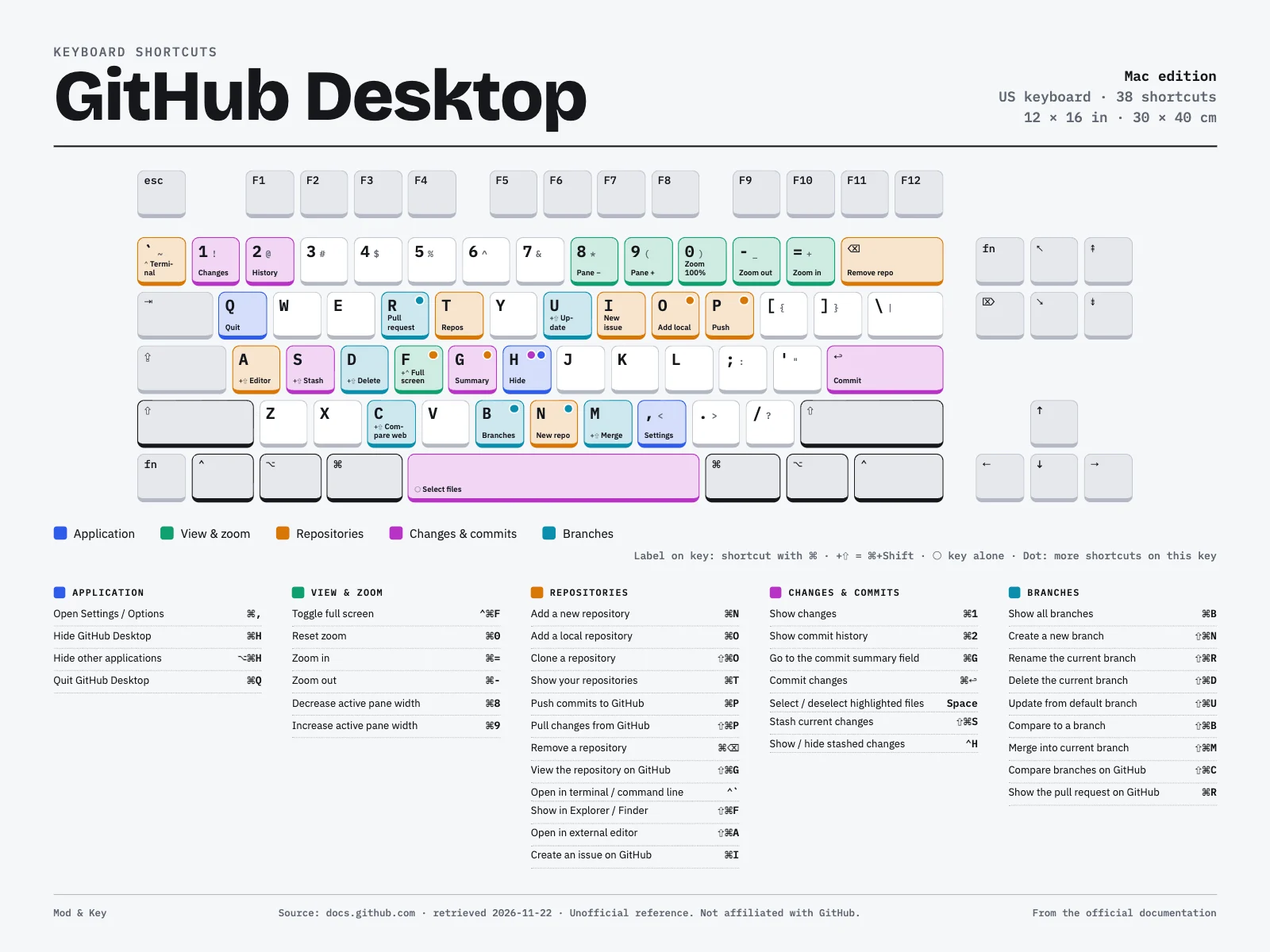
 Get it on your desk →
The most used GitHub Desktop shortcuts on Mac: Push commits to GitHub (⌘P), Pull changes from GitHub (⇧⌘P), Show changes (⌘1), Commit changes (⌘↩), Show all branches (⌘B). This page lists all 38, from the official documentation.
38 GitHub Desktop keyboard shortcuts for Mac, grouped into Application, View & zoom, Repositories, Changes & commits, Branches. Every key is copied from docs.github.com (retrieved November 22, 2026) and shown on a real keyboard layout.
On Mac, 31 of these 35 shortcuts are the Windows ones with ⌘ in place of Ctrl; 4 are different, for example Toggle full screen (⌃⌘F; Windows: F11), Remove a repository (⌘⌫; Windows: Ctrl+Del), Open in terminal / command line (⌃`; Windows: Ctrl+`).
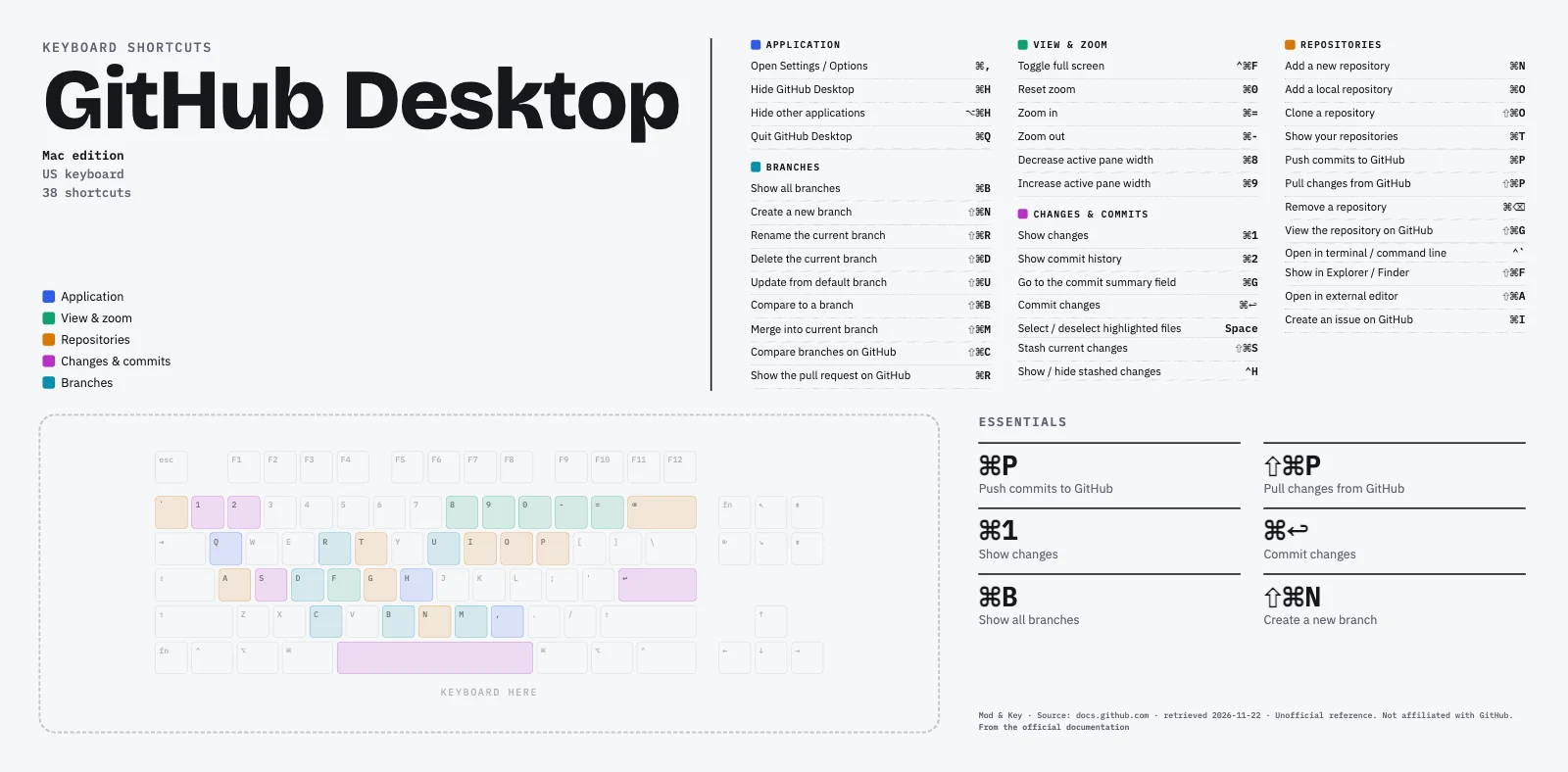
GitHub Desktop keyboard map
Pick your keyboard and a modifier. Keys with a shortcut light up; point at or tap a key to see everything on it. Try it: hold ⌘ Cmd on your keyboard
More shortcuts on this key with other modifiers.
With ⌘20 keys
All GitHub Desktop keyboard shortcuts for Mac
No shortcut matches that search.
Application4
| Command | Shortcut |
|---|---|
| Open Settings / Options | ⌘, |
| Hide GitHub Desktop | ⌘H |
| Hide other applications | ⌥⌘H |
| Quit GitHub Desktop | ⌘Q |
View & zoom6
| Command | Shortcut |
|---|---|
| Toggle full screen | ⌃⌘F |
| Reset zoom | ⌘0 |
| Zoom in | ⌘= |
| Zoom out | ⌘- |
| Decrease active pane width | ⌘8 |
| Increase active pane width | ⌘9 |
Repositories12
| Command | Shortcut |
|---|---|
| Add a new repository | ⌘N |
| Add a local repository | ⌘O |
| Clone a repository | ⇧⌘O |
| Show your repositories | ⌘T |
| Push commits to GitHub | ⌘P |
| Pull changes from GitHub | ⇧⌘P |
| Remove a repository | ⌘⌫ |
| View the repository on GitHub | ⇧⌘G |
| Open in terminal / command line | ⌃` |
| Show in Explorer / Finder | ⇧⌘F |
| Open in external editor | ⇧⌘A |
| Create an issue on GitHub | ⌘I |
Changes & commits7
| Command | Shortcut |
|---|---|
| Show changes | ⌘1 |
| Show commit history | ⌘2 |
| Go to the commit summary field | ⌘G |
| Commit changes | ⌘↩ |
| Select / deselect highlighted files | Space |
| Stash current changes | ⇧⌘S |
| Show / hide stashed changes | ⌃H |
Branches9
| Command | Shortcut |
|---|---|
| Show all branches | ⌘B |
| Create a new branch | ⇧⌘N |
| Rename the current branch | ⇧⌘R |
| Delete the current branch | ⇧⌘D |
| Update from default branch | ⇧⌘U |
| Compare to a branch | ⇧⌘B |
| Merge into current branch | ⇧⌘M |
| Compare branches on GitHub | ⇧⌘C |
| Show the pull request on GitHub | ⌘R |
Source: GitHub · docs.github.com · retrieved . Unofficial reference. Not affiliated with GitHub. How we source shortcuts →
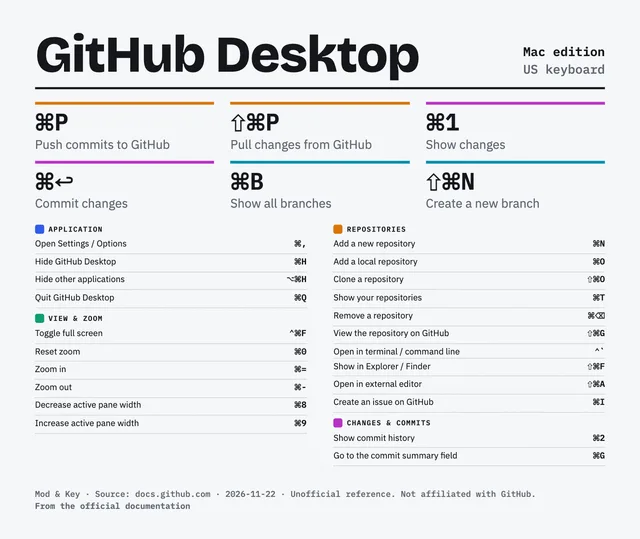
Free printable GitHub Desktop cheat sheet
The essential shortcuts on one page (PDF, 24 × 20 cm), for your keyboard and language.
GitHub Desktop shortcut questions
- What is the shortcut for “Push commits to GitHub” in GitHub Desktop on Mac?
- Press ⌘P. That is the shortcut for “Push commits to GitHub” in GitHub Desktop on Mac, as given in the official documentation.
- What is the shortcut for “Pull changes from GitHub” in GitHub Desktop on Mac?
- Press ⇧⌘P. That is the shortcut for “Pull changes from GitHub” in GitHub Desktop on Mac, as given in the official documentation.
- What is the shortcut for “Show changes” in GitHub Desktop on Mac?
- Press ⌘1. That is the shortcut for “Show changes” in GitHub Desktop on Mac, as given in the official documentation.
- Where do these GitHub Desktop shortcuts come from?
- From GitHub’s official documentation at docs.github.com, retrieved November 22, 2026. Every key is copied from there, never from other websites.